Amazon accounts see Settlements. Other sales channels see Payouts. The statuses work the same way. This article says "settlement". Read "payout" for non-Amazon channels.
Some messages tell you to contact support. When they do, use the Contact support button on the page. It adds your settlement or payout ID to the message. Do not send the settlement again, and do not mark it as not sent, unless the message says you can. That can create duplicate entries in your accounting software.
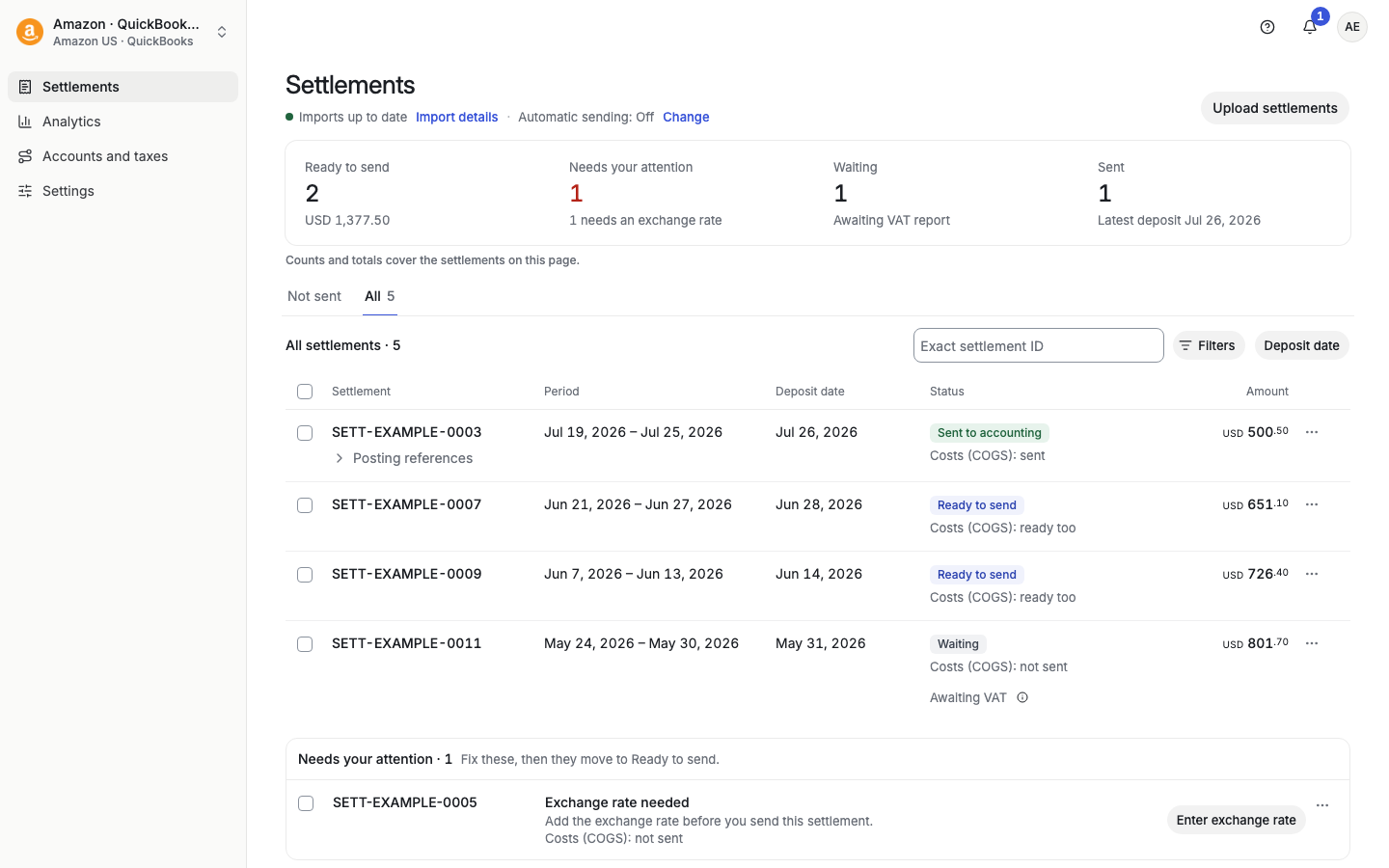
Taxomate has processed the settlement and nothing blocks it. Select ⋯ on the row, then Send…. Or select rows and use Review and send in the bar at the bottom. You can also turn on Automatic sending.
Something blocks sending. The row shows the reason in a short note, and often a button for the fix. The reasons are in the next section. The summary card for this group is named Needs your attention.
Taxomate is waiting for something that you cannot speed up. See Awaiting VAT and Waiting for exchange rate below.
The entries were sent. Open the settlement to see the posting references.
Payouts can also show Partly sent and Sent · needs review. See the end of this article.
One or more transaction types have no account in your accounting software. The row says, for example, "2 transaction types have no QuickBooks account", and has a Map 2 types button.
What to do: select the button, choose an account for each type, and save. Then rebuild the settlement and send. See "What are Accounts and taxes?".
The type looks mapped but the row still says Review mappings? The settlement keeps its list of unmapped types until you rebuild it. See "The type looks mapped, but the settlement still says Review mappings" in "Why am I receiving a mapping error?".
Taxomate cannot tell which marketplace the settlement belongs to. The detail page shows Marketplace not set: the source report has no marketplace information, and Taxomate inferred one.
What to do: open the settlement and use Set marketplace before you send. If you see Choose another marketplace, pick the right one. For the full steps, see "Set the marketplace on a settlement that has none".
The detail page shows Settlement totals do not match. It says that posting is on hold. It shows the total in the source report and the total of the detail rows.
This means the total that your channel reports is not the same as the sum of its detail rows. The cause is usually in the source data, for example a report that does not add up, or an order that changed after the payout. Sometimes the cause is how Taxomate built the settlement. Support has fixed cases like this and rebuilt the settlements that were not sent.
What to do:
Do not send it. Automatic sending also skips it.
Find the amount that your channel paid (in Seller Central, Shopify or eBay, or on your bank statement). Compare it with the two totals on the page.
Select Rebuild from Amazon report under More actions on the settlement page (on a payout the item is Rebuild from {channel} data, for example Rebuild from Shopify data). A rebuild checks the totals again. If the source data now agrees, the hold clears. See "What does Rebuild do?".
If the totals still do not match, select Contact support on the page. Add the amount your channel paid, the total in the source report, and the total of the detail rows. You cannot clear this hold yourself.
If you already sent a settlement with a difference: the difference stays in your books. Ask your accountant to post the difference to the clearing account or bank-fee account. Do not delete a reconciled entry to fix a few cents.
For Shopify payouts, see "What does Payout totals need review mean?".
Taxomate has blocked this settlement. The message is: "Sending is blocked for this settlement. Contact support to clear the block."
What to do: contact support. You cannot clear this block yourself.
The settlement is already in your accounting software, or it needs a correction there. The message is: "This settlement is already in your accounting software and needs a correction there. Sending it again is blocked."
What to do: do not send it again. Check your accounting software for the entries. If you want to send it again, open the settlement and select More actions > Delete entries from {software} (for example Delete entries from QuickBooks). If the page refuses, it says why. Then select Contact support. See "Delete, archive or mark as not posted".
The settlement is in a different currency from your bank or credit card account in your accounting software. The detail page says it cannot be sent directly to that account. Record it in a same-currency clearing account and use the converted amount and fee that your provider confirms. Sending stays on hold until those details are available.
What to do: select Enter exchange rate in Needs your attention (the button on the list row is Add exchange rate), or More actions > Correct marketplace or exchange rate on the settlement page. See "How do I create a clearing account in QuickBooks?" or the same article for Xero. For the steps and the Change exchange rate window, see "Can I convert a foreign Amazon marketplace currency to my home currency in QuickBooks?".
Taxomate is waiting for the Amazon VAT Transactions Report to finish processing the settlement. Amazon releases this report in the first days of the following month, for transactions in the previous month. Taxomate requests it on the 4th and again on the 6th. Most settlements move to Ready to send by about the 7th. A settlement that covers two months waits for the report for the later month.
What to do: nothing. Taxomate sends the settlement after the report arrives. See "Awaiting VAT: What does it mean?".
The settlement is in a different currency from your accounting software, its deposit day has not passed, and no exchange rate is saved yet. The detail page says: "This settlement is on hold until the exchange rate is available. Do not post it manually."
What to do: wait. Do not post it by hand.
Part of the settlement is already in your accounting software. Taxomate cannot add the rest, so Send is off.
What to do: select Delete entries from your accounting software, check that the old entries are gone, then send the whole settlement again. If you need help, select Contact support.
Taxomate sent a request and could not confirm the result. Select Check accounting status. Do not send again until the page shows the result.
A saved send request is waiting or running. The status updates by itself while the page is open.
Your accounting software does not have this currency turned on. The message lists the steps for your software: turn on multi-currency, add the currency, then come back and select Send again.
Sending is on hold until each transaction type has an account mapping. The page lists the unmapped types and has a Review mappings button.
This banner appears when Automatic sending found a setup problem before it sent anything. Nothing was sent. Fix the problem. If Automatic sending is on, Taxomate sends the settlement again by itself. Otherwise, send it yourself. The banner can show Next setup check with a date and time. Review Accounts and taxes and Connections before you retry.
The line under the banner title says which problem it is:
A currency does not match. "A QuickBooks account, customer or bank account uses a different currency from this settlement, or the journal mixes currencies." Check the currencies of the mapped accounts and your QuickBooks multicurrency settings.
No Accounts Receivable account in that currency. Create one in QuickBooks, or record a first invoice in that currency.
More than one Accounts Receivable account in that currency. Keep one top-level account active.
A negative settlement and the QuickBooks default tax code. The default tax code has no purchase rate. Add a 0% purchase rate to it in QuickBooks, or contact support.
Open credits. "QuickBooks would apply open credits or unapplied payments to Taxomate's invoices." Turn off Automatically apply credits in QuickBooks, or apply the credits yourself. The message names the number and total of the credits when it knows them.
Missing mappings. "{Types} have no account." Map them in Accounts and taxes. The banner has a Review mappings button.
A tax type that the account does not accept (Xero). Change the tax rate for that row in Accounts and taxes, or change the account tax setting in Xero.
Anything else. "Automatic sending is waiting for setup changes."
Taxomate could not confirm what was saved. The banner says: check your accounting software for entries from this settlement, then contact support before you send again.
These messages appear with a Reference and the buttons Contact support and Copy reference. Copy the reference into your message to support.
Some entries may already be in {QuickBooks, Xero or your accounting software}. Taxomate asked your accounting software to save or delete entries and could not confirm the result. The page hides Send. Do not send it again or mark it as not sent. Support checks your books and finishes it.
Entries from earlier steps may be in QuickBooks. QuickBooks refused the final step. Contact support before you send again.
This is already in Xero. Xero already has a document for this settlement. Taxomate will not send it again or take over the existing one on its own. Support reconciles it.
This payout does not balance. The payout is worth zero, but its entries do not add up to zero. Nothing was sent. Support reviews it.
A marketplace recovery is in progress. Support is fixing the marketplace. Sending resumes when that finishes.
A fee-tax correction needs review. The settlement has a reviewed Amazon fee-tax correction. Rebuilding it would replace that correction. Contact support before you change or send it.
Deleting is in progress, and A correction is in progress. Taxomate is saving a change. Wait, then refresh. If it does not clear, contact support.
Sending is on hold. Taxomate paused the settlement so it cannot create duplicate entries. Check your accounting software for entries from this settlement, then contact support before you send again.
Payout is on hold (some channels). The page lists what Taxomate could not reconcile. Select Copy payout ID and contact support. Do not send until support confirms the totals.
For a payout whose entries you deleted, the page says: "You deleted this payout's entries from {provider}. Finish these steps before sending again." Confirm that the old invoice and payment are gone, confirm that you fixed the wrong mappings or costs, then select Resume posting.
Partly sent: part of the payout was sent. Open it and check the posting history. Under More actions, Delete entries from your accounting software removes the saved entries so that you can send the payout again.
Sent · needs review: Taxomate has saved sends for this payout, but cannot confirm that the entries are in your books. Open the payout. Check your accounting software for the entries listed under Posting history. If they are there, select Contact support so we can mark it as sent. If they are not there, select Delete entries from {software} (under More actions) and send again.
Needs review: a hold, a validation problem, or an unconfirmed correction. Open the payout for the message, and see the sections above.
Archived payout: "This payout is in the archive." Restore it before you send it: select Restore in the row menu on the Payouts list, or select rows and use Restore payouts.
The dashboard shows up to three rows, most urgent first:
{Name} is disconnected: select Reconnect {name}. See "Reconnect, switch company and repair setup".
Quick Setup is incomplete: select Complete Quick Setup.
Your first payout is in {software}: your free send is used. Select Choose a plan and add a card to keep sending.
{N} transaction types need a {software} account: select Map N types.
{N} settlements ready to send: select Review and send.
