Go to Settings > Connections to manage the links between Taxomate, your sales channel and your accounting software.
Taxomate can lose access to QuickBooks, Xero or Wave. It can also lose access to Amazon, Shopify, eBay or Etsy. When that happens:
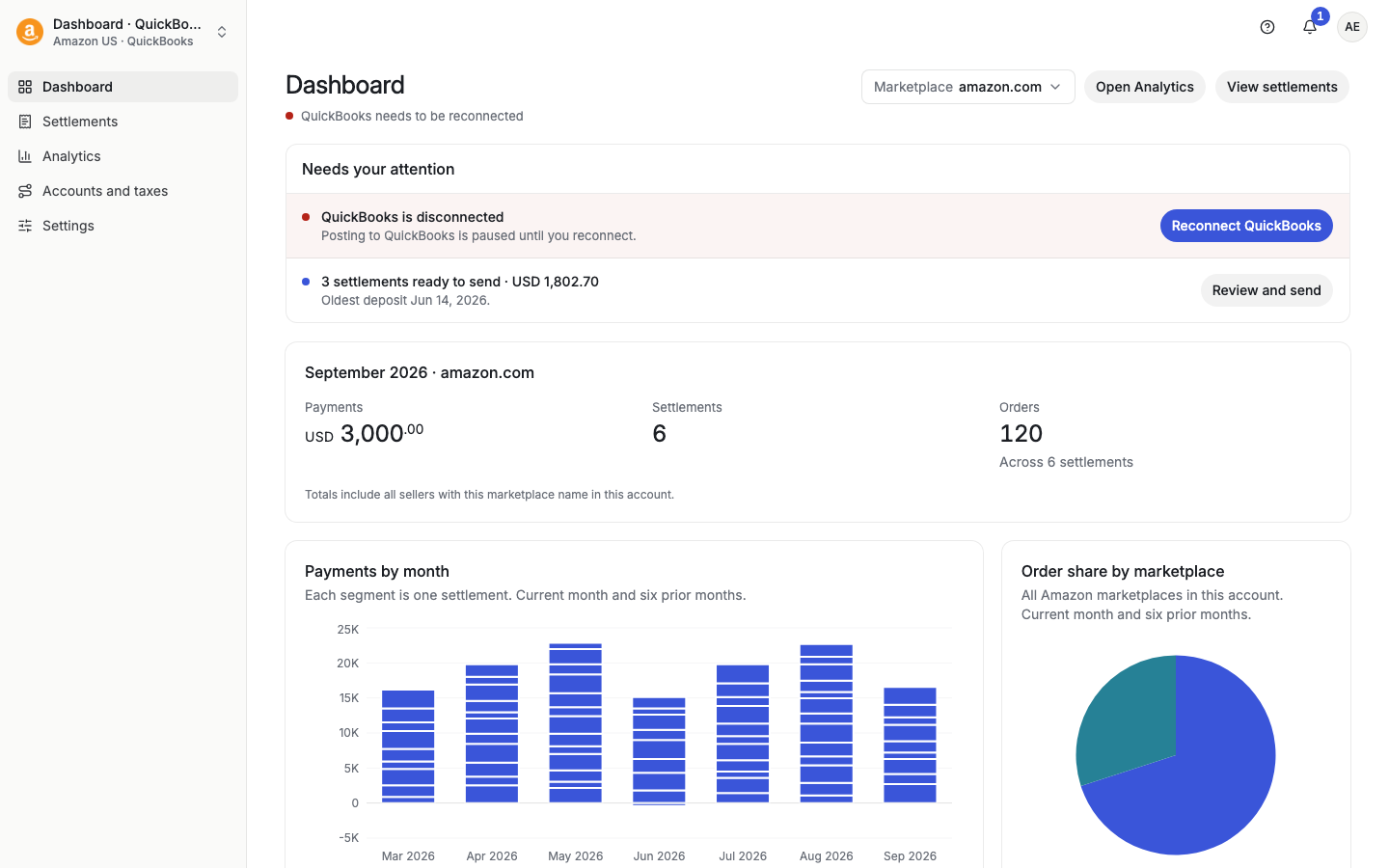
The dashboard shows a row under Needs your attention, for example QuickBooks is disconnected. It says what is paused, for example "Posting to QuickBooks is paused until you reconnect."
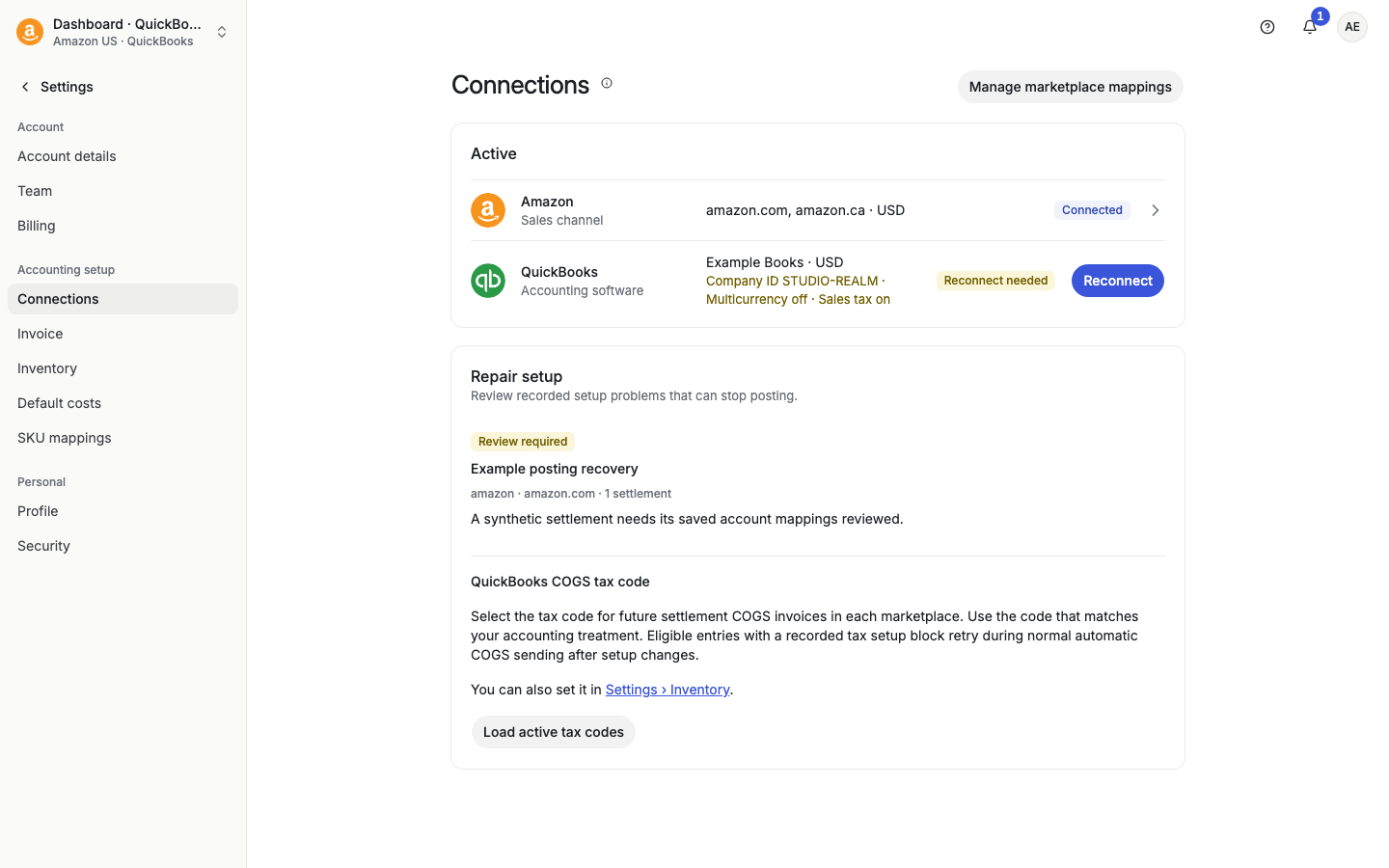
The Connections page shows Reconnect needed next to the connection.
Nothing is sent until the connection works again. For Amazon, Shopify or eBay, the dashboard says that importing new settlements or payouts is paused until you reconnect.
On the dashboard, select Reconnect QuickBooks (or Reconnect Xero) in the row. Taxomate opens the sign-in page of QuickBooks or Xero at once.
Sign in to the same company that is saved on your account.
Taxomate brings you back to the page where you started.
The return to your page works for 30 minutes in the same browser tab. After that, you land on the page that QuickBooks or Xero names, and you can go back to the dashboard yourself.
Go to Settings > Connections and select the connection.
If the connection has a problem, the page shows Taxomate could not reach {QuickBooks}. Select Reconnect to {company name}. If the company name is not known, the button says Reconnect QuickBooks.
Sign in to the same company.
If QuickBooks or Xero is down, Taxomate checks again within an hour.
If the connection is healthy, the page also has Reconnect QuickBooks ("Sign in to the same QuickBooks company again."). Xero and Wave have Reconnect Xero and Reconnect Wave ("Sign in to Xero again if Taxomate lost access."). Etsy has Reconnect Etsy.
For Amazon, each marketplace has its own Reconnect button and a Reconnect needed badge. For Shopify, a store that needs it shows Reconnect. See "Renew Amazon Connection".
If you sign in to a different QuickBooks company or Xero organisation than the one saved on the account, Taxomate shows Wrong account:
"You signed in to a different QuickBooks company. This account sends to {saved company}. Sign in to {saved company}, or use Switch company."
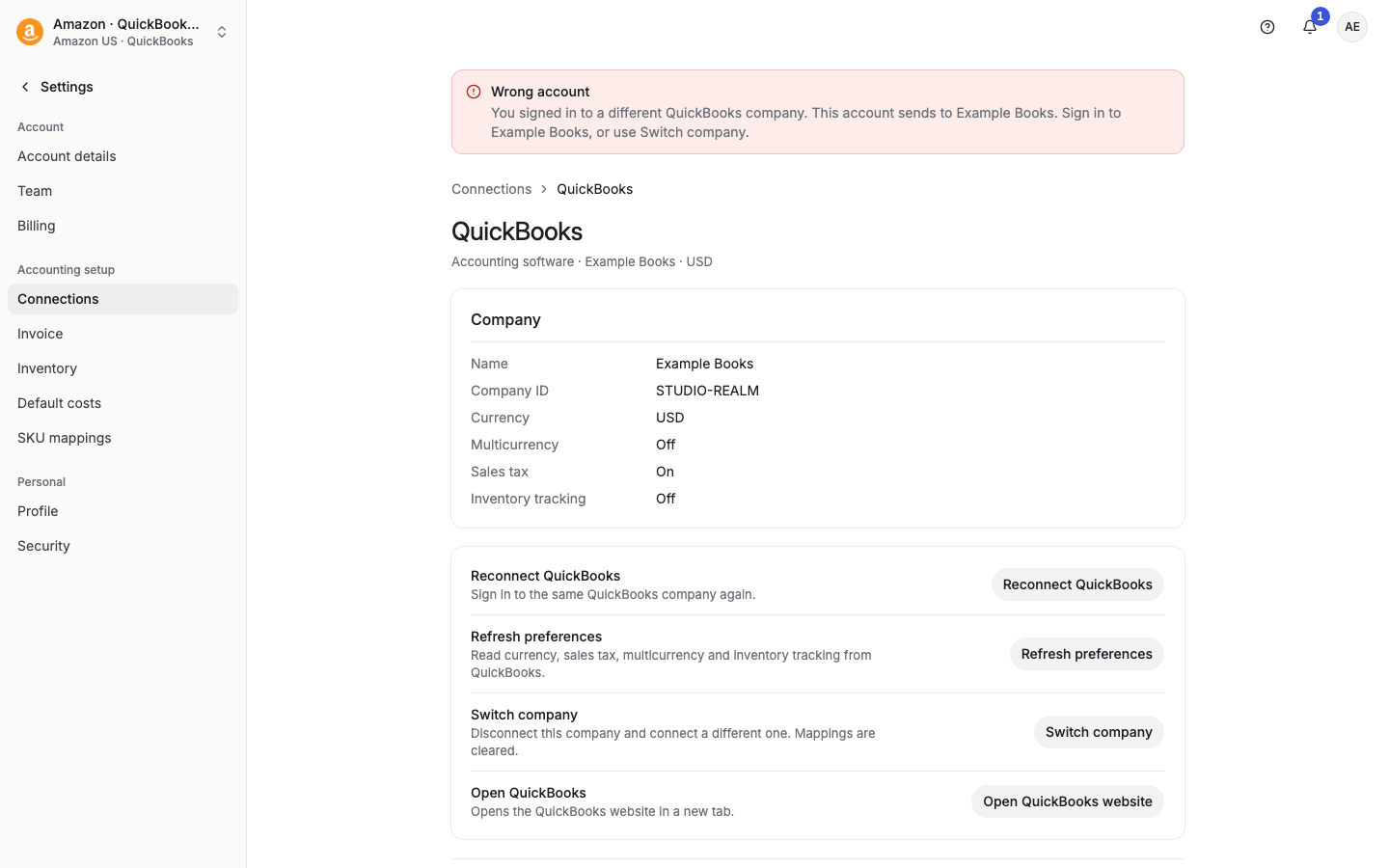
You have two choices:
Sign in to the saved company. Select Reconnect and use the right login. Check which company you are signed in to in QuickBooks or Xero first.
Move to the other company. Use Switch company (below). Mappings are cleared.
On some pages, Taxomate does not offer Switch company. Then the message ends with "Sign in to {saved company} to reconnect."
If you changed your currency, sales tax, multicurrency or inventory tracking settings in QuickBooks, select Refresh preferences on the QuickBooks page. Taxomate reads these settings from QuickBooks and saves them to your account. The page shows them under Company: Multicurrency, Sales tax and Inventory tracking.
Use Switch company when you want the account to send to a different QuickBooks company, Xero organisation or Wave business.
On the connection page, select Switch company. It says "Disconnect this company and connect a different one. Mappings are cleared."
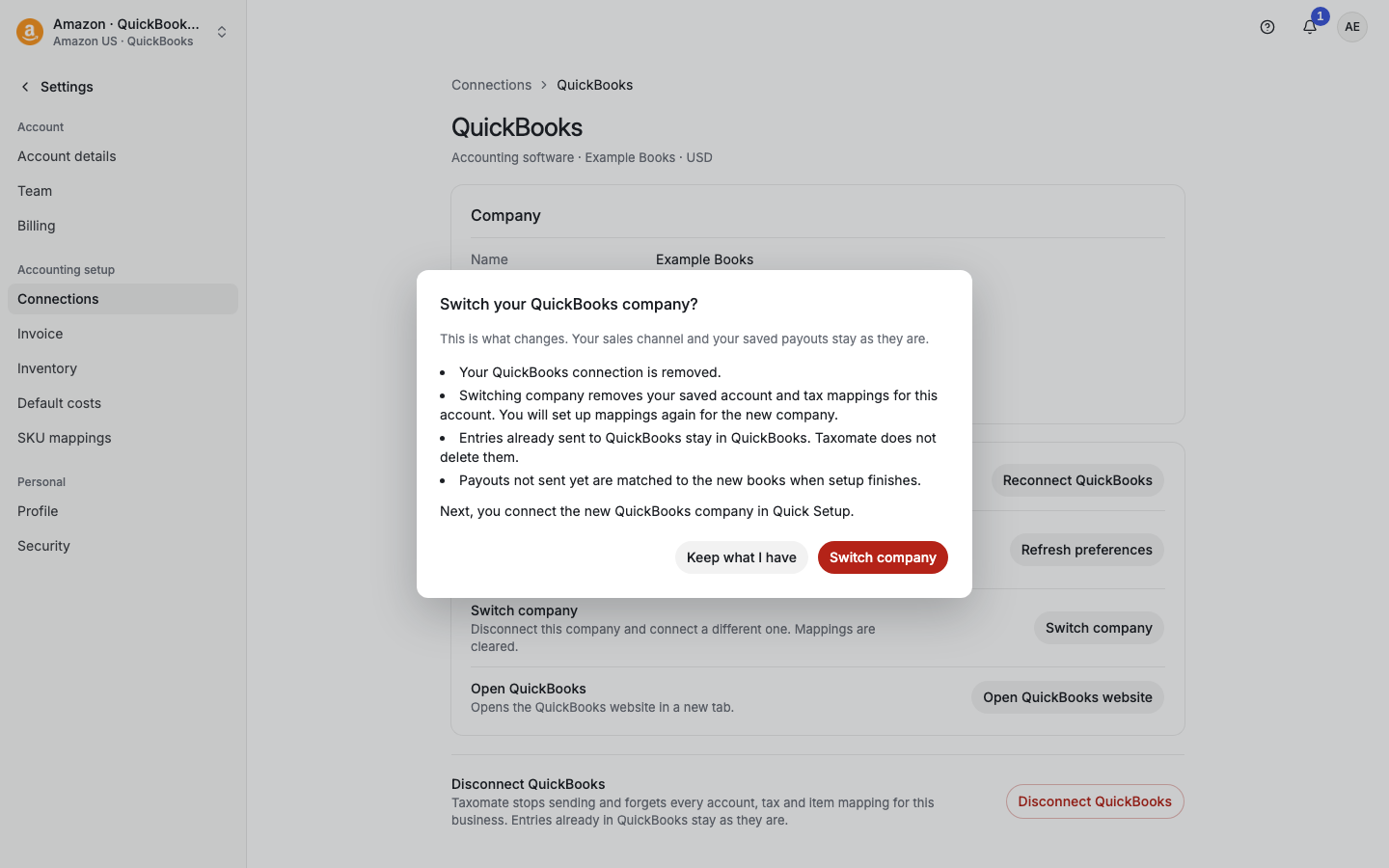
Read the dialog Switch your QuickBooks company? It says:
Your QuickBooks connection is removed.
Switching company removes your saved account and tax mappings for this account. You will set up mappings again for the new company.
Entries already sent to QuickBooks stay in QuickBooks. Taxomate does not delete them.
Payouts not sent yet are matched to the new books when setup finishes.
Select Switch company, or Keep what I have to stop.
Sign in to the new company.
Set up your mappings again. See "What are Accounts and taxes?" and "Marketplace mappings: what each setting does".
In Quick Setup, before any payout is sent, Switch company goes straight through with no dialog. If your account shares its Xero connection with other accounts, the dialog lists them, and only an account administrator can disconnect it.
To move to a different accounting app, see "Can I change the accounting system connection?".
Repair setup is a card on the Connections page. It says "Review recorded setup problems that can stop posting." Each problem shows a status (Action required, Checking, Recovered or Review required), a title, the channel and marketplace, and how many settlements are affected. Depending on the problem, it links to Review mappings or Review settlements, or has Contact support. For some problems it shows the next automatic setup check. Taxomate checks again by itself.
If nothing is wrong, it says "No recorded settlement setup blocks. Each posting attempt still runs its normal checks."
If your QuickBooks company is outside the US and you use cost of goods sold, Repair setup also lets you pick the COGS tax code:
Select Load active tax codes.
Choose the COGS marketplace and the COGS tax code.
Select Review COGS tax code, then confirm Save COGS tax code.
The new code applies to future COGS invoice lines. Existing invoices are not changed. You can also set it at Settings > Inventory. An account administrator must save this setting.
Disconnect QuickBooks (or another provider) stops Taxomate from sending and removes your saved account, tax and item mappings. Entries already in your accounting software stay. To send again, connect again and run Quick Setup. Only an account administrator can disconnect Xero or Shopify, because other accounts can share them. Account members get an email.
