
Your password belongs to your sign-in. It works for every Taxomate account you open. You can change it from the Security page. Any team member can change their own password.
Change it when you know your current password
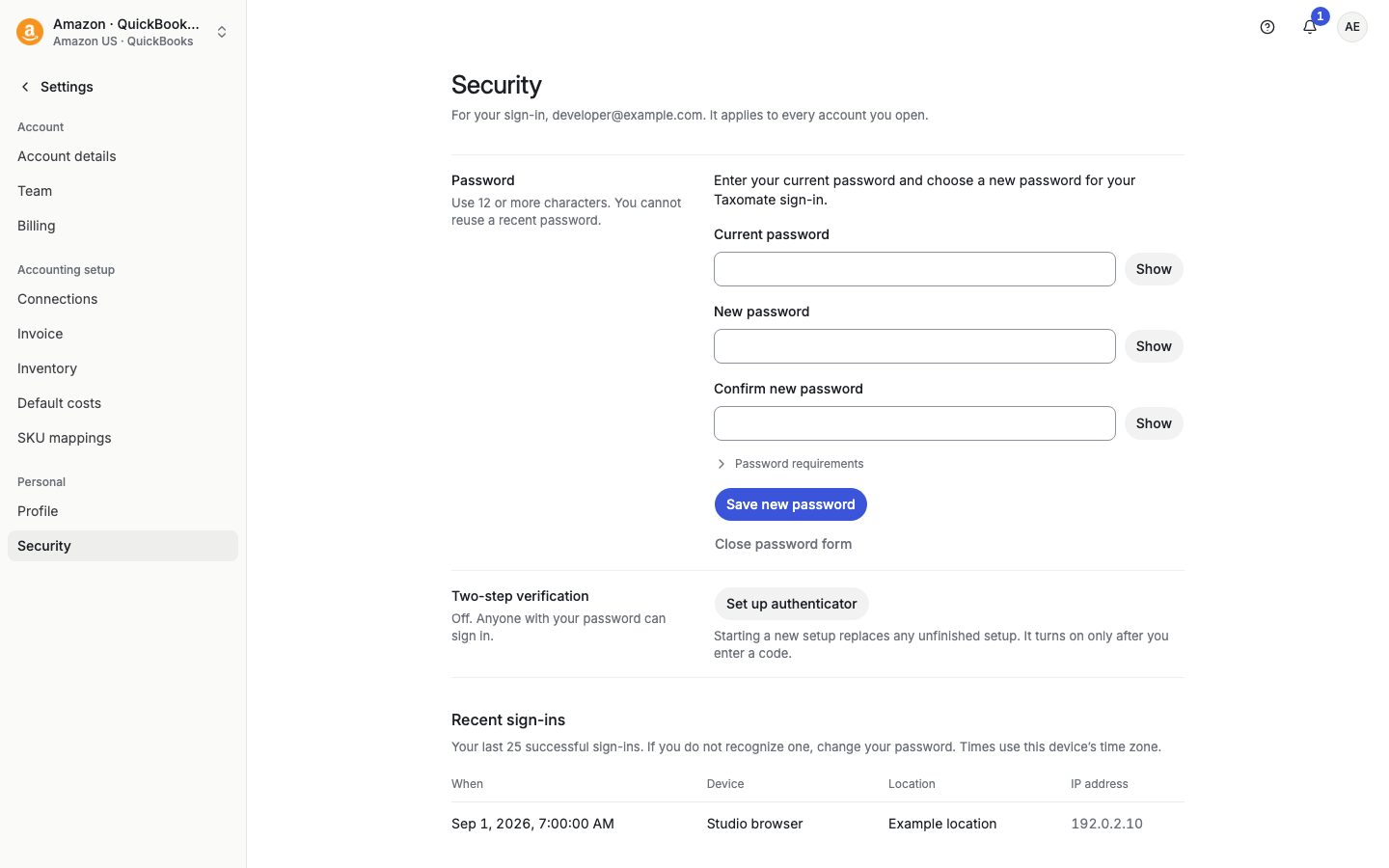
Go to Settings > Security.
In the Password row, select Change password.
Enter your Current password.
Enter a New password, then enter it again in Confirm new password.
Select Save new password.
The page says: "Your password was changed. Use your new password the next time you sign in."
Password rules
Use 12 to 64 characters. Include an uppercase letter, a lowercase letter, a number, and a symbol from this list: ! @ # $ % ^ & * , . ? - +. You cannot reuse one of your last 10 passwords.
Each field has a Show button to check what you typed. Select Password requirements under the fields to see the rules. The label changes to Password meets requirements when your password is good. If the new password and the confirmation differ, the page says "The passwords do not match. Enter the same password in both fields."
If it does not work
"Your current password is incorrect." Enter your passwords again.
"Too many attempts. Wait before trying again."
"Use a password-reset link to set or unlock your password." Your sign-in is locked. Use Email me a reset link instead.
"Your sign-in changed. Sign out and sign in again before changing your password."
If Taxomate cannot confirm the change, it asks you to sign out. Sign in with your new password. If that fails, request a reset link.
Change it when you do not know your current password
On the Security page, select Email me a reset link instead. A dialog asks "Request a password-reset link?". Confirm with Request reset link and sign out. Taxomate sends an email to your sign-in address and signs you out after it accepts the request. The page cannot confirm that the email arrived. Check your inbox and spam folder.
If you signed up with Google or Xero, you have no password yet. Use Email me a reset link instead to set one.
If you are signed out, select Forgot password? on the password sign-in screen. See "Sign in to Taxomate".
Keep your account safe
At the bottom of the Security page, Recent sign-ins shows your last 25 successful sign-ins. If you do not recognize one, change your password. You can also turn on two-step verification. See "Set up two-step verification".