Taxomate has four ways to sign in. Use the one you chose when you created your account.
An email code. This is the default. You do not need a password.
A password.
Google.
Xero.
On the Taxomate sign-in page, enter your Email.
Select Email me a sign-in code.
Open the email from Taxomate. It has a 6-digit code.
Enter the code on the Check your email screen. Taxomate signs you in as soon as you enter the sixth digit. The code works for 30 minutes.
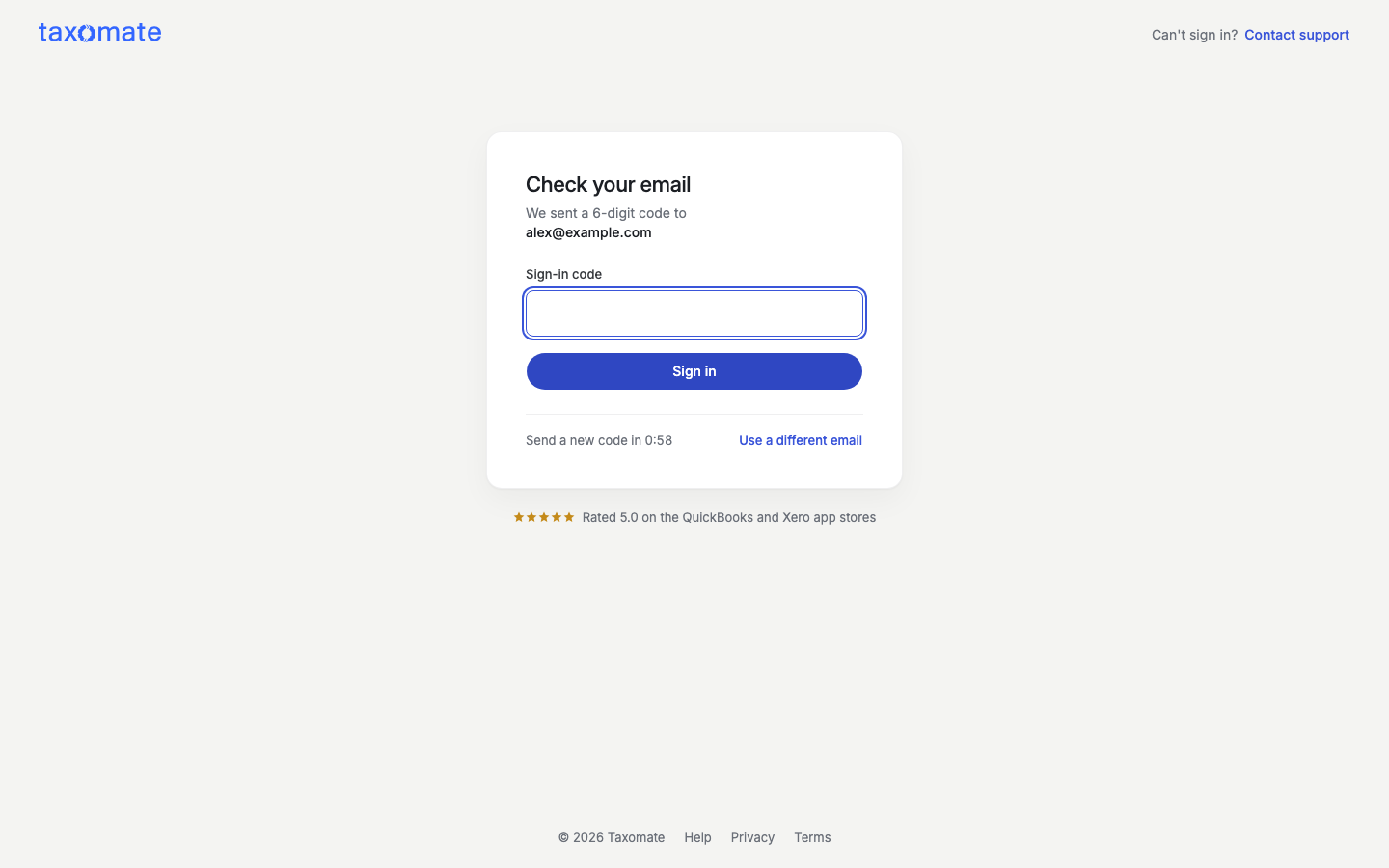
Enter your Email.
Select Sign in with a password.
Enter your Password, then select Sign in.
To go back to codes, select Email me a sign-in code. If you forgot your password, select Forgot password?.
For Google, select Continue with Google.
For Xero, select Continue with Xero under "Signed up with Xero?".
If you created your account with Google or Xero, sign in with that button. If the provider does not open, Taxomate says: "We couldn't open Google. Try again, or use your email." (It says Xero for Xero.)
After your password, an email code, Google or Xero, you may see Enter your authenticator code. Open your authenticator app and enter the 6-digit code. See "Set up two-step verification".
Check the email address. If Taxomate cannot send a code, it says "We could not send a code to this email. Check it and try again." Use the email you used when you created your account.
Look in your spam, junk and promotions folders. The subject of the email is "Taxomate login code".
Wait for the timer. After a code is sent, the screen shows "Send a new code in 0:xx". The wait is about a minute. When the timer ends, select Send a new code. The screen says "New code sent. Use the latest one." Older codes do not work.
Use a different email. On the code screen, select Use a different email if you signed up with another address.
Try another method. If you signed up with Google or Xero, use that button. If you have a password, select Sign in with a password.
Contact support. On the code screen, select Contact support under "Can't sign in?".
If the code is wrong, the screen says "That code didn't match. Check the latest email from Taxomate, or send a new code." If you try too many times, it says "Too many attempts. Wait a minute before you enter another code."
If you see "Your account is locked after too many attempts," select Reset your password to unlock it.
On the password sign-in screen, select Forgot password?.
Enter your email and select Send reset link.
Open the email and use the link. It works once.
On Set a new password, enter a new password and select Save password and sign in. Taxomate signs you in when you save it.
The screen says "If an account uses {your email}, we sent it a link." If you do not see the email, check your spam and promotions folders. If you signed up with Google or Xero, sign in with that button instead. Use Send another link after the timer ends. If the link has expired, select Request a new link.
Sign-up has two steps on one page.
Enter your Work email and select Continue. If an account already uses the email, the page says so and links to Sign in.
Enter your First name and a Password. The password needs 12 or more characters, upper and lower case, a number, and a symbol such as ! # or ?. The rules show as you type.
Optional: the check box "Email me Taxomate product updates and e-commerce accounting tips." is off by default. Select it only if you want these emails. You can unsubscribe at any time.
Select Create account.
On Verify your email, enter the 6-digit code that Taxomate sent. Then select Verify and continue.
You start a 14-day free trial. Quick Setup comes next, and it asks which sales channel you use. You can also sign up with Continue with Google or Sign up with Xero.
By creating an account, you agree to the Terms of Service and Privacy Policy.
This is different from signing in to Taxomate. During Quick Setup, if you sign in to a different accounting company than the one saved on the account, Taxomate shows Wrong account. See "Reconnect, switch company and repair setup".
If you see "Your sign-in timed out. Sign in again.", start sign-in again from the first screen.
