Go to Settings > Billing to see your plan, change it, update your payment card, and see your invoices.
Any team member can change the plan and the card. Only an account administrator can close the account or share the subscription with another account.
If one subscription pays for more than one account, the page says so: "One subscription pays for {account} and {n} other accounts." Plan and card changes apply to every account on that subscription.
The Subscription card shows:
Plan, with the order limit, for example "Up to 200 orders a month".
Price, and when it renews. If you cancelled, it shows when the plan ends.
Orders this month, compared with your plan limit.
The label next to Subscription shows the status, for example Active, Trial or Past due.
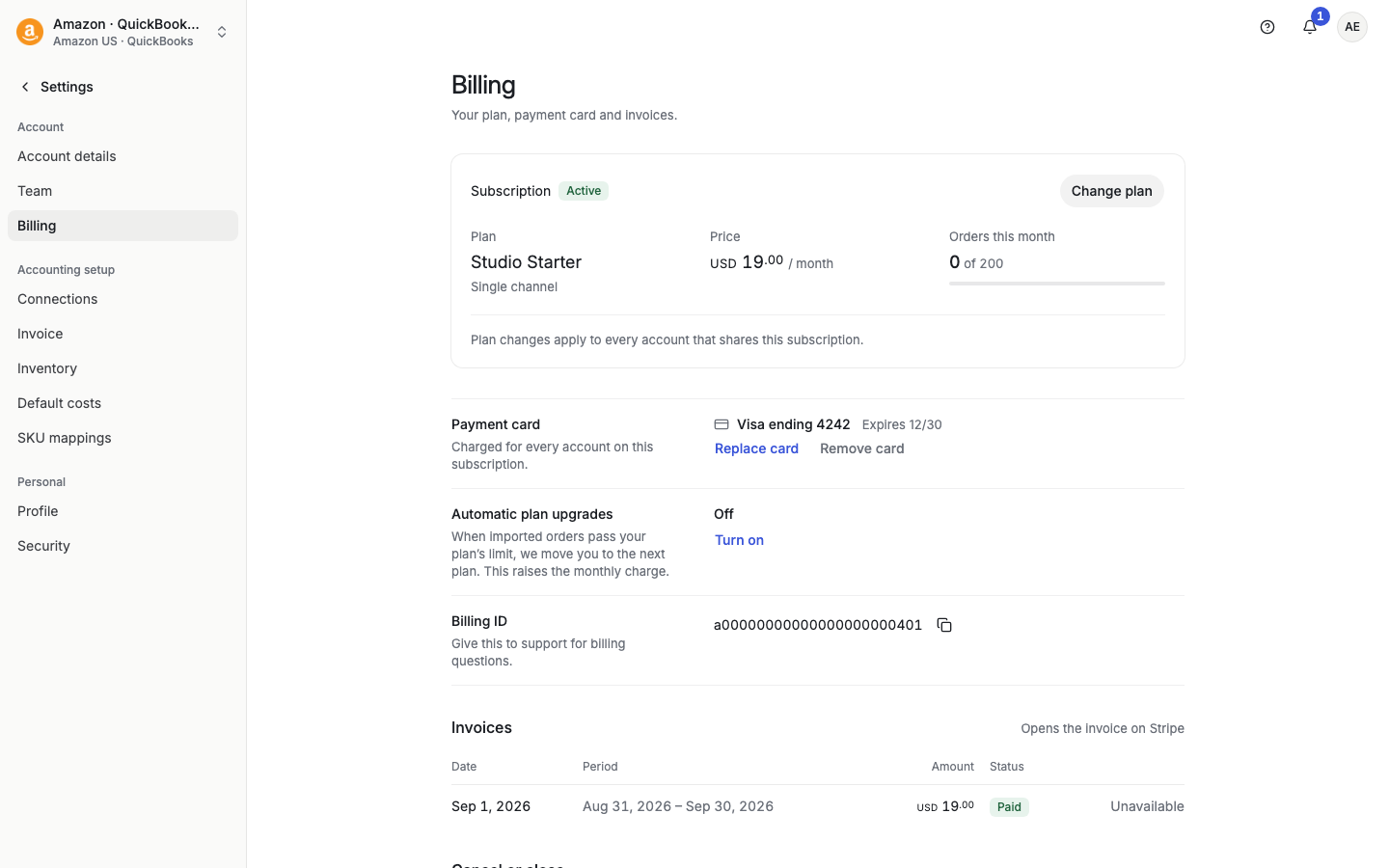
On the Billing page, select Change plan. (If you have no active plan, the button says Choose a plan.)
On Subscription plans, choose Monthly or Yearly under Billing period, and choose Orders per month.
Select the Choose button on the plan you want. It names the plan type, for example Choose Starter, Choose Multi-channel or Choose Inventory Sync. The plan you have now shows Current plan.
Review the dialog "Subscribe to {plan}?". It shows the plan, price and orders per month. Changes apply to all accounts that share the subscription. A change to an existing subscription can cause a prorated charge or credit. The final tax and prorated amount are not shown before you confirm.
Confirm.
If you need more orders than the listed plans, select Contact us about a custom plan.
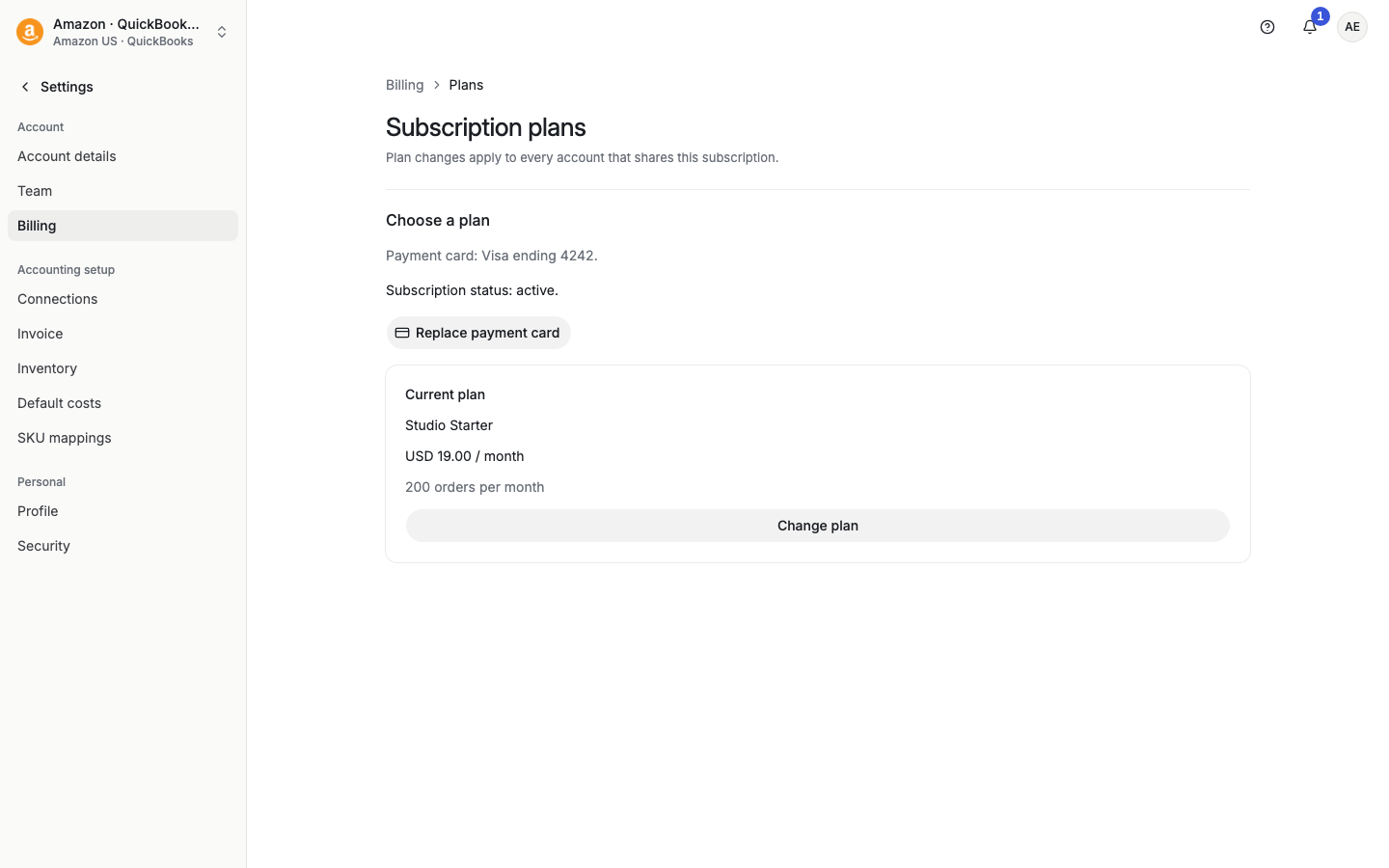
On the Billing page, find Payment card. It shows the brand, the last four digits and the expiry date.
Select Replace card. If there is no card, select Add card.
Enter the new card in the secure form. Payments are processed by Stripe.
Select Review payment card.
In "Save this payment card?", check the card and select Save payment card.
Saving replaces the default card for every account on the subscription. Future charges use the new card.
To remove a card, select Remove card, then Remove payment card. Future payments can fail if no usable card remains. Removing a card does not cancel the subscription.
Automatic plan upgrades are on or off. When imported orders pass your plan's limit, Taxomate moves you to the next plan. This raises the monthly charge.
To change it, select Turn on or Turn off in the Automatic plan upgrades row, then confirm Turn on automatic upgrades or Turn off automatic upgrades. The setting applies to every account on the subscription.
The Invoices section of the Billing page lists your invoices. Each row has the date, period, amount and status. Select View to open the invoice on Stripe. Use Show older invoices for earlier ones.
The Billing ID row has a copy button. Give this ID to support for billing questions.
If you installed Taxomate from the Shopify App Store, Shopify bills the plan. The Billing page says "Shopify bills this plan. It appears on your Shopify bill."
You cannot add or change a card in Taxomate. Payment shows Your Shopify bill.
Change plan opens Shopify, where a store owner approves the new charge. The plan changes after approval. Select Review and approve in Shopify.
Shopify charges lists the last 20 charges from Shopify.
You cannot cancel Shopify billing in Taxomate. Select Contact support.
If your accountant manages the subscription, the page says "Managed by your accountant". Ask your accountant to update the plan.
Under Cancel or close, you can select Cancel subscription or Close account. See "How do I cancel my account?" and "Close an account".
