TikTok Shop works in Taxomate as a beta. Taxomate imports your TikTok Shop payouts and shows the sales and fees in each one. You review each payout and send it to QuickBooks, Xero or Wave yourself. Nothing goes to your books until you choose to send it.
One TikTok Shop for each Taxomate account.
United States TikTok Shops only.
Payouts with sales and fees for each order, checked against your TikTok deposit.
Sending to QuickBooks, Xero or Wave, one payout at a time or several together.
Some features are not available for TikTok Shop yet. See "What is not available yet" below.
Have these ready:
Your TikTok Shop seller login. Use the login that owns the shop.
Your QuickBooks, Xero or Wave login.
Starter covers one sales channel. A Taxomate account that has only TikTok Shop fits the Starter plan.
Growth covers more than one sales channel. If you sell on TikTok Shop and on another channel, such as Amazon or Shopify, and both accounts share one subscription, you need the Growth plan.
When you create a TikTok Shop account and add it to a Starter subscription that already has another channel, Taxomate does not create it. The form says Your plan covers one channel. Upgrade to the Growth plan, or bill the new account separately. See "Manage your plan, card and automatic plan upgrades".
Start Quick Setup. On Where do you sell?, choose TikTok Shop. It has a Beta badge.
Select Continue with TikTok Shop, then choose your plan on Plan and payment.
On Connect TikTok Shop and your books, select Connect on the TikTok Shop row. You can also do this later in Settings > Connections.
The window Join the TikTok Shop beta opens. Read the three beta terms:
You send each TikTok payout to your books yourself. Automatic posting is not available yet.
If a payout does not match your TikTok deposit, Taxomate holds it. Our support team reviews it with you.
COGS, payout analytics and reprocessing are not available for TikTok Shop yet.
Select I want to join the TikTok Shop beta, then select Join and connect TikTok Shop.
Sign in to TikTok Shop with your seller login. Authorize one shop, then approve the access that Taxomate asks for.
TikTok Shop sends you back to Taxomate. The page says TikTok Shop is connected. Continue with the remaining setup steps.
Select Connect on QuickBooks Online, Xero or Wave, and sign in to your books. Then continue with Accounts and taxes and Review your first payout.
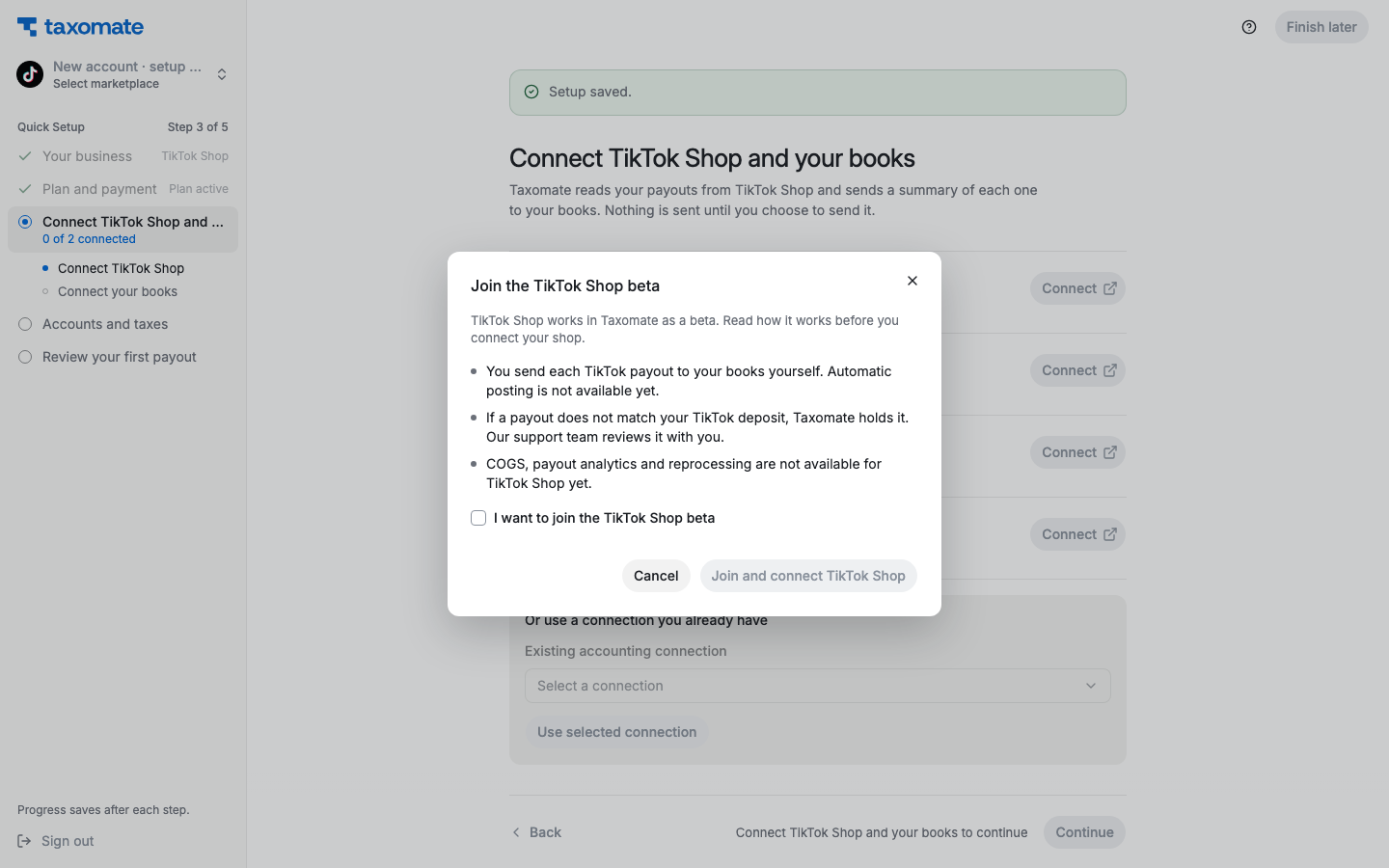
You join the beta one time for each Taxomate account. If you connect TikTok Shop again later, the beta window does not open again.
Do the TikTok Shop sign-in in the same browser where you started it. If you use another browser, the connection does not complete.
Taxomate shows a message on the setup page. These are the most common:
Message | What to do |
|---|---|
Only United States TikTok Shops are supported. | The beta supports only shops in the United States. |
Authorize exactly one TikTok Shop for this Taxomate account. | Connect again and choose one shop. For a second shop, create another Taxomate account. |
This TikTok Shop is already linked to another Taxomate account. | Sign in to the Taxomate account that has the shop. To move the shop, contact support. |
Sign in to TikTok Shop with a seller account, then connect again. | Sign in with the seller login that owns the shop. |
This TikTok Shop connection request expired, was already used, or was started in another browser. Connect again in this browser. | Select Connect again and finish the sign-in in the same browser. |
TikTok Shop authorization was not granted. Connect again to continue. | Connect again and approve the access. |
If the message shows a Reference, contact support and tell us the reference.
TikTok Shop pays you with statements. After TikTok Shop pays a statement to your bank, Taxomate imports it as a payout. Taxomate then reads the transactions in the statement and makes one line for each sale and fee of each order, for example Principal, Referral fee, Affiliate commission and Actual Shipping Fee.
Taxomate checks that the lines add up to the amount TikTok Shop deposited. On the payout page, the line Total matches the TikTok Shop deposit confirms this.
New payouts show on Payouts. Your first payouts can take some time to appear. To get older payouts, select Import older payouts on Payouts. See "How far back does Taxomate import? Getting older payouts and settlements".
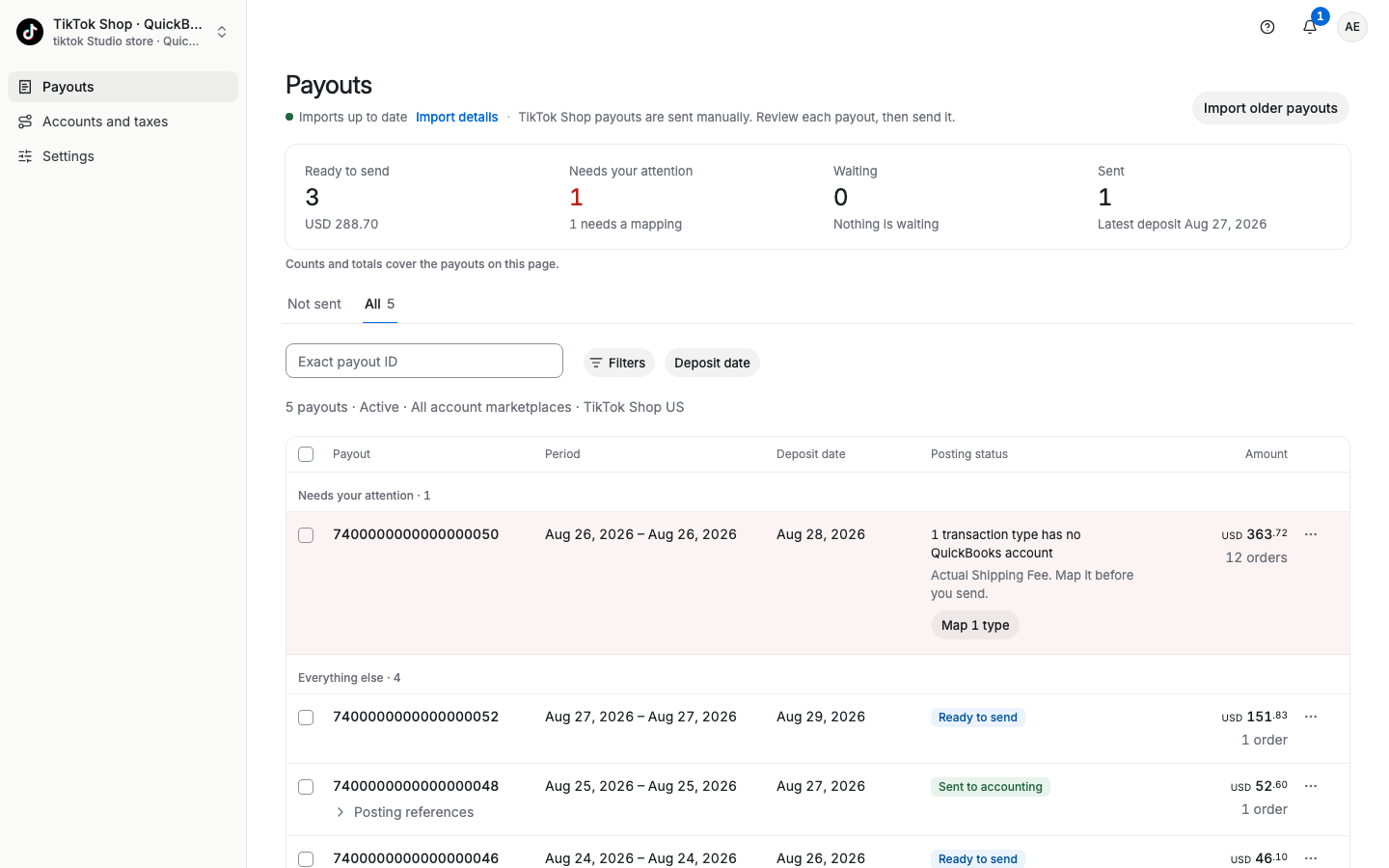
Each line goes to the account that you choose on Accounts and taxes. If a line has no account, the payout shows, for example, 1 transaction type has no QuickBooks account. Select Map 1 type, choose an account, then send the payout.
TikTok Shop payouts are not sent automatically. The top of Payouts says TikTok Shop payouts are sent manually. Review each payout, then send it.
Go to Payouts and open a payout with the status Ready to send.
Check What will be sent to QuickBooks (or Xero, or Wave) and the line Total matches the TikTok Shop deposit.
Select Send to QuickBooks (or Send to Xero, Send to Wave).
The window Send payout to QuickBooks? shows the total and the Send as choice. Select Send to QuickBooks to confirm.
You can also open the ⋯ menu on a row of Payouts and select Send….
When the payout is in your books, its status is Sent to accounting. To remove it from your books, open the payout and use More actions.
On Payouts, select the payouts with the check boxes.
In the bar at the bottom, select Review and send N, where N is the number of payouts to send.
Confirm.
Sometimes a TikTok Shop payout does not match your TikTok deposit, or TikTok Shop reports a fee that Taxomate does not recognize yet. Taxomate then holds the payout, so that it does not put wrong amounts in your books.
A held payout has the status Needs review and the notice Payout is on hold. The notice tells you why, for example TikTok Shop paid USD 59.15. The payout lines add up to USD 60.15. You cannot send a held payout.
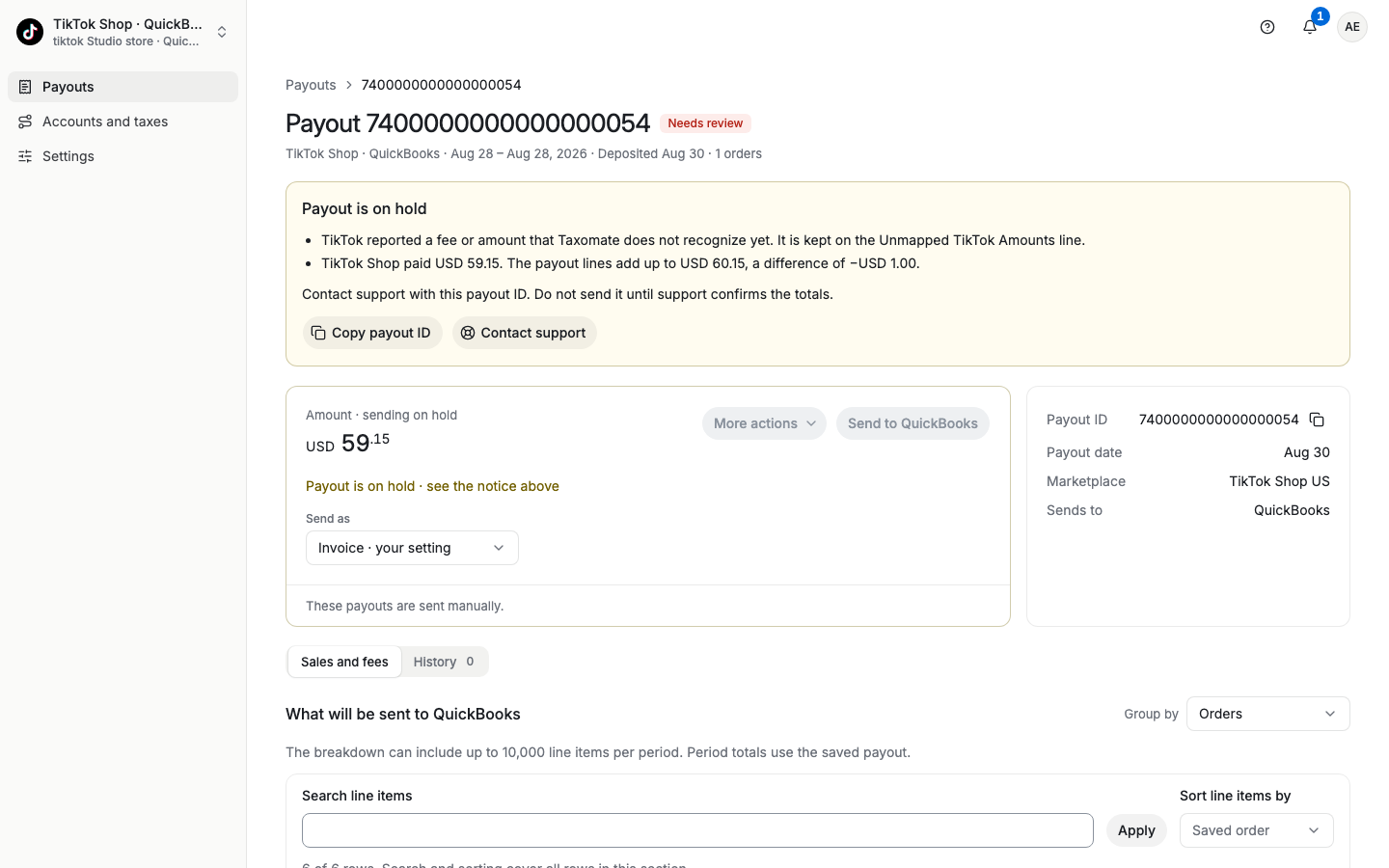
Open the payout and select Copy payout ID.
Select Contact support and paste the payout ID in your message.
Do not send the payout until support confirms the totals. Our support team reviews the payout with you.
These features are not available for TikTok Shop during the beta:
Automatic sending. You send each TikTok Shop payout yourself. The automatic sending settings do not show for TikTok Shop.
Cost of goods sold (COGS). Taxomate does not add COGS to TikTok Shop payouts. The Inventory and Default costs settings do not show.
Payout analytics. Analytics does not show for a TikTok Shop account.
Rebuild (reprocessing). You cannot rebuild a TikTok Shop payout. If a payout looks wrong, contact support.
We will update this article when these features become available.
"Step 3: Connect your store and your books"
"Manage your plan, card and automatic plan upgrades"
"How far back does Taxomate import? Getting older payouts and settlements"
What does "Rebuild" do? Why won't my settlements update?
