Refresh reads a settlement or payout again from its source and applies your current mappings and settings. Entries already sent are not changed. Refresh was called Rebuild, and before that Reprocess.
You changed a setting that Taxomate applies at import, for example Group sales by in Settings > Invoice, or a setting in Settings > Inventory. A settlement that is not sent yet keeps its old numbers until you refresh it.
You changed a class or tracking setting in Accounts and taxes. After you save, the page tells you to refresh existing settlements.
A settlement still shows Mappings need review after you mapped every type. Select Refresh with current mappings under the warning.
You do not need to refresh after a normal mapping save. Taxomate reads your mappings when it sends a settlement.
Open the settlement.
Select More actions, then Refresh from Amazon report. For payouts the item is Refresh from {channel} data, for example Refresh from Shopify data. You cannot refresh a TikTok Shop payout.
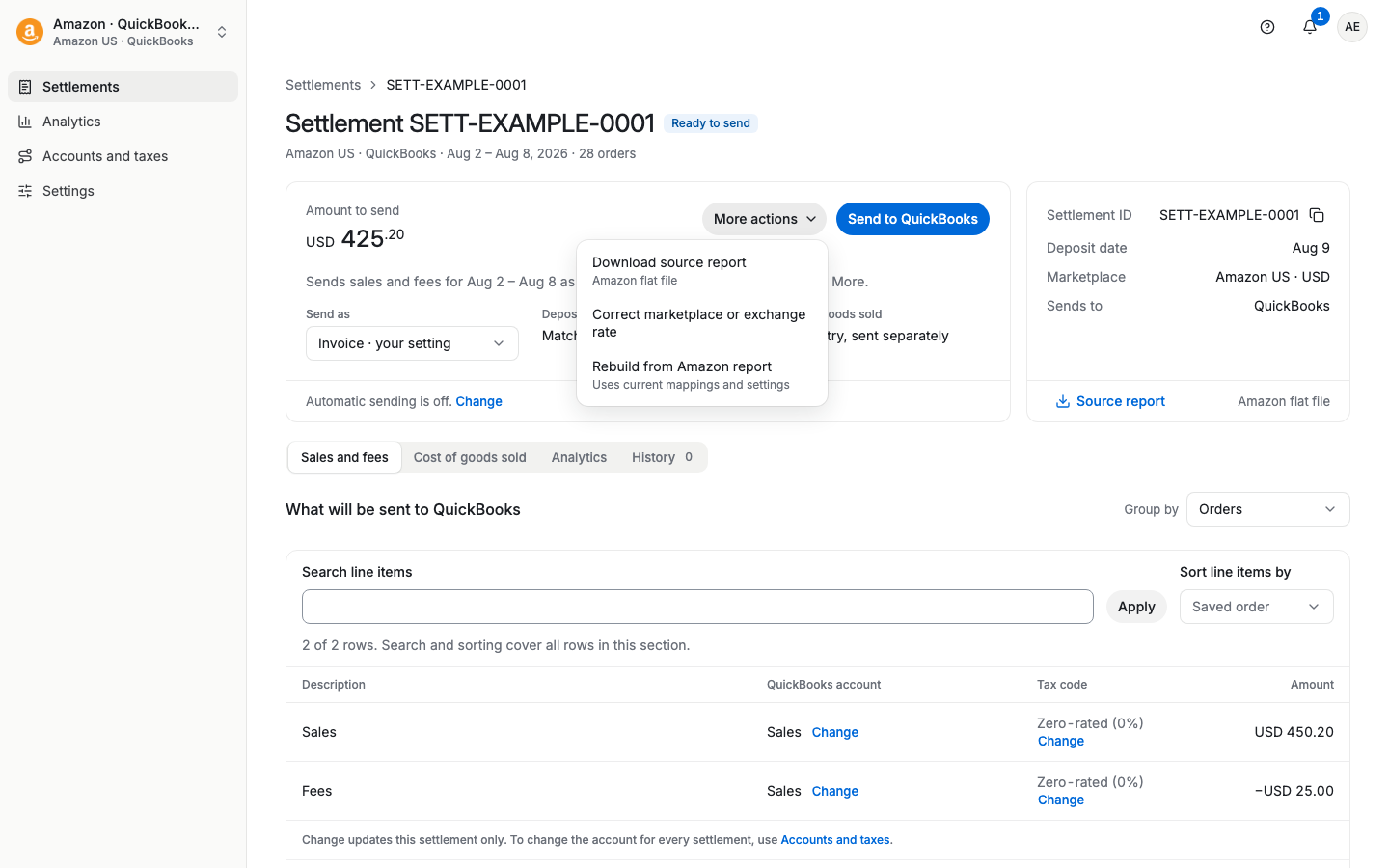
Confirm the refresh in the dialog. This can take a few minutes.
On Settlements (or Payouts), select the rows that you want to update.
In the bar at the bottom, select More actions.
Under Manage settlements, select Refresh settlements. For payouts, select Refresh payouts.
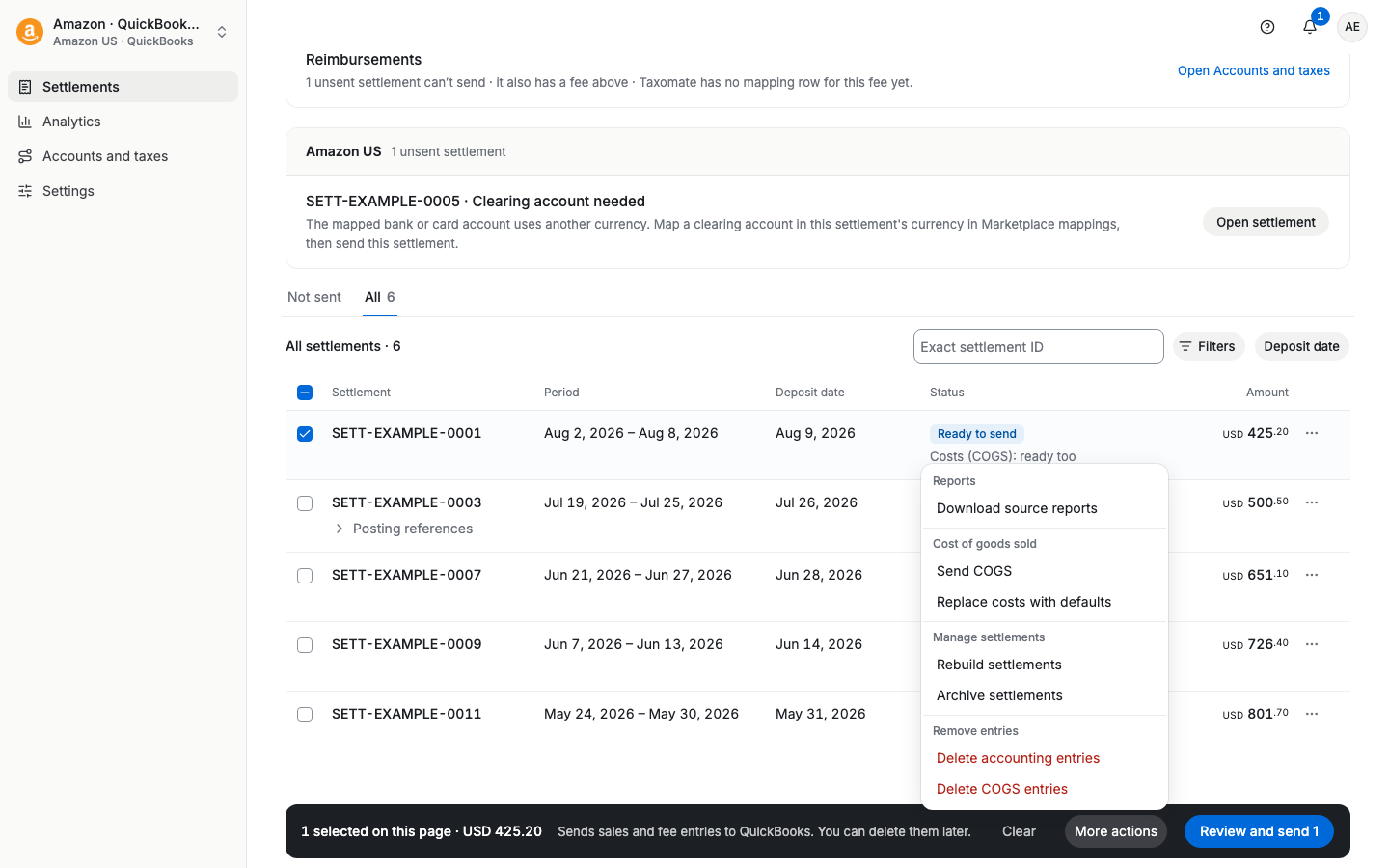
You can also use the ⋯ menu on one row and select Refresh from source.
When any part of a settlement is in your accounting software, Refresh is off. The page says Delete the entries first. To change a sent settlement:
Delete its entries (see "How do I delete a sales invoice or journal entry after sending?").
Select More actions, then Refresh from Amazon report.
Send the settlement again.
