
Taxomate maps Canadian sales tax by the provincial jurisdiction that Amazon assigns.
⚠️ This feature is in beta. Taxomate groups "Tax" transaction types by sales tax type (GST, HST, and so on). We plan to add more. Please send us your feedback.
1. Follow Quick Setup to connect everything to Taxomate.
2. Request sales tax reports in Amazon Seller Central
In Amazon Seller Central go to Reports > Tax Document Library. Select Generate a tax report and generate it for the period that covers all your imported settlements.
👉 You must generate these reports yourself. Amazon does not let Taxomate request them for you.
Taxomate imports the report in a few hours. Until then, the settlement tax panel lists Orders with pending Sales tax details.
3. Your provinces appear by themselves
You do not choose provinces in Taxomate. After Taxomate reads a sales tax report, the provinces with tax in that report appear on Accounts and taxes for the Amazon.ca marketplace. Open Accounts and taxes, choose Amazon.ca next to Mappings for, and use the Province list. Each row shows the tax type and who collected it (Amazon or you). The base mappings apply unless you set an override for a province.
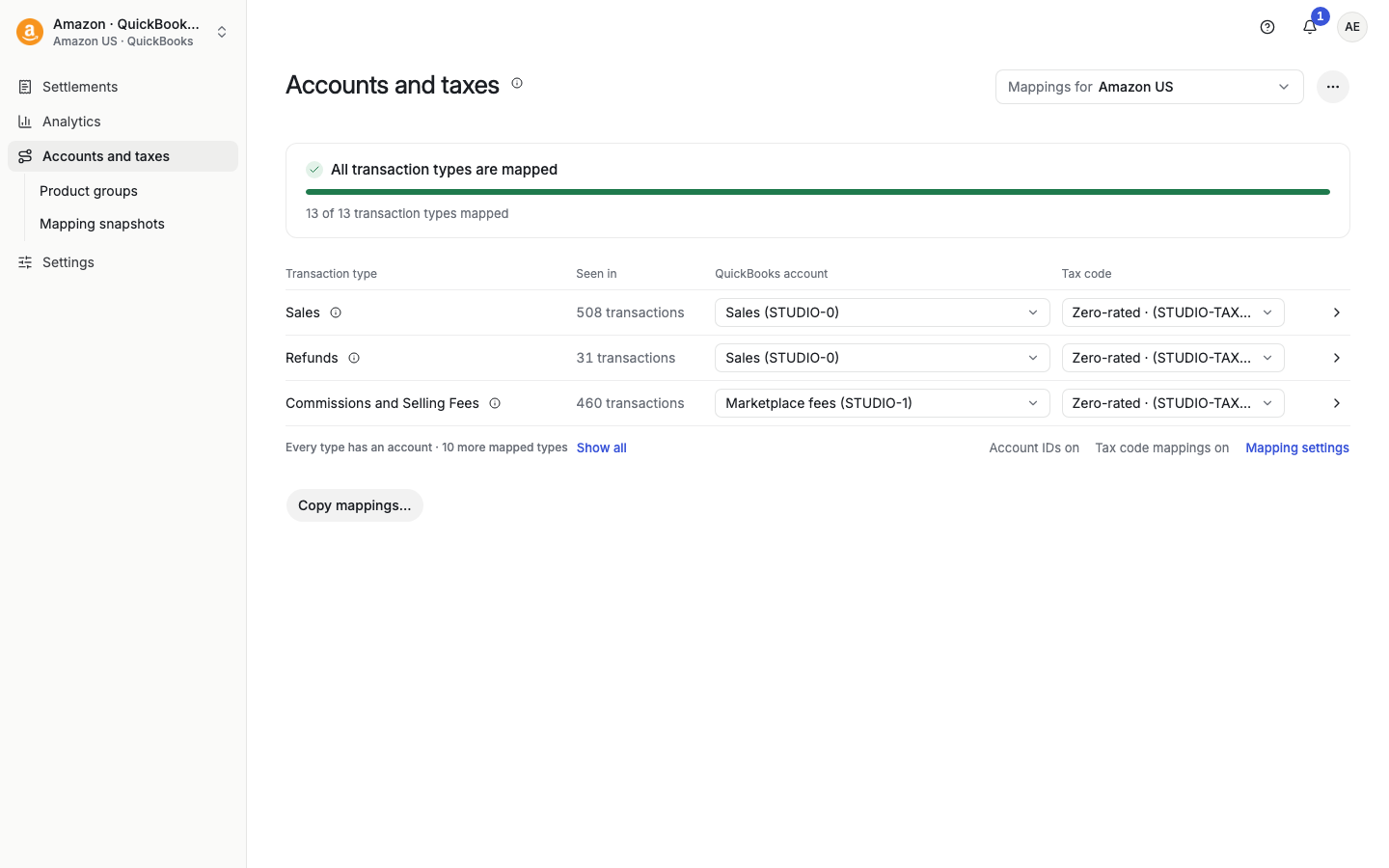
Until a report is imported, the page says "No provinces yet. Provinces appear here after Taxomate reads a sales-tax report with tax for that province."
Whenever you add a province or change a mapping, select Review and save, then Rebuild the settlements that are not sent yet.
4. Province mappings
The Amazon.ca page holds your default mappings. Each province holds the orders that Amazon assigned to that province. You can map Gift Wrap, Promotions, Refunds, Sales, and Tax.
Advanced users can map tax types by who collects them (you or Amazon) or by tax type (GST/HST, PST, and so on). On the Tax row, select Open advanced Canadian tax mappings. Turn on Tax code mappings first in Mapping settings.