Taxomate calculates cost of goods sold (COGS) for each settlement period using your product costs. Read how the COGS feature works before you start.
COGS is sent separately from sales and fees. Check the accounts and costs before you send it to QuickBooks, Xero, or Wave.
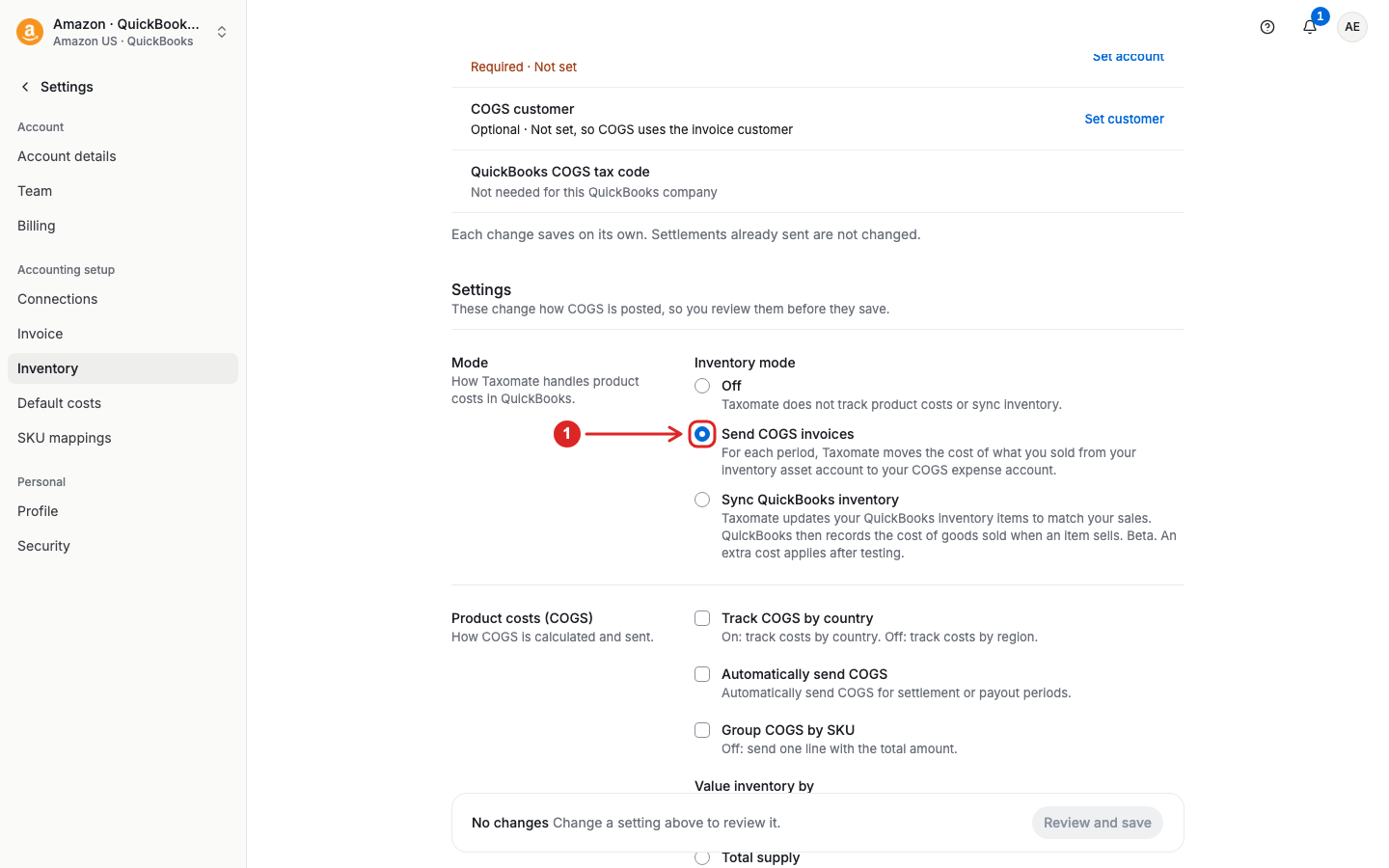
Open Settings > Inventory. If your account shows Inventory mode, choose Send COGS invoices. For accounts with an Enable COGS option, turn that option on.
You can also choose Track COGS by country and Group COGS by SKU where available. Select Review and save, review the changes, and confirm.
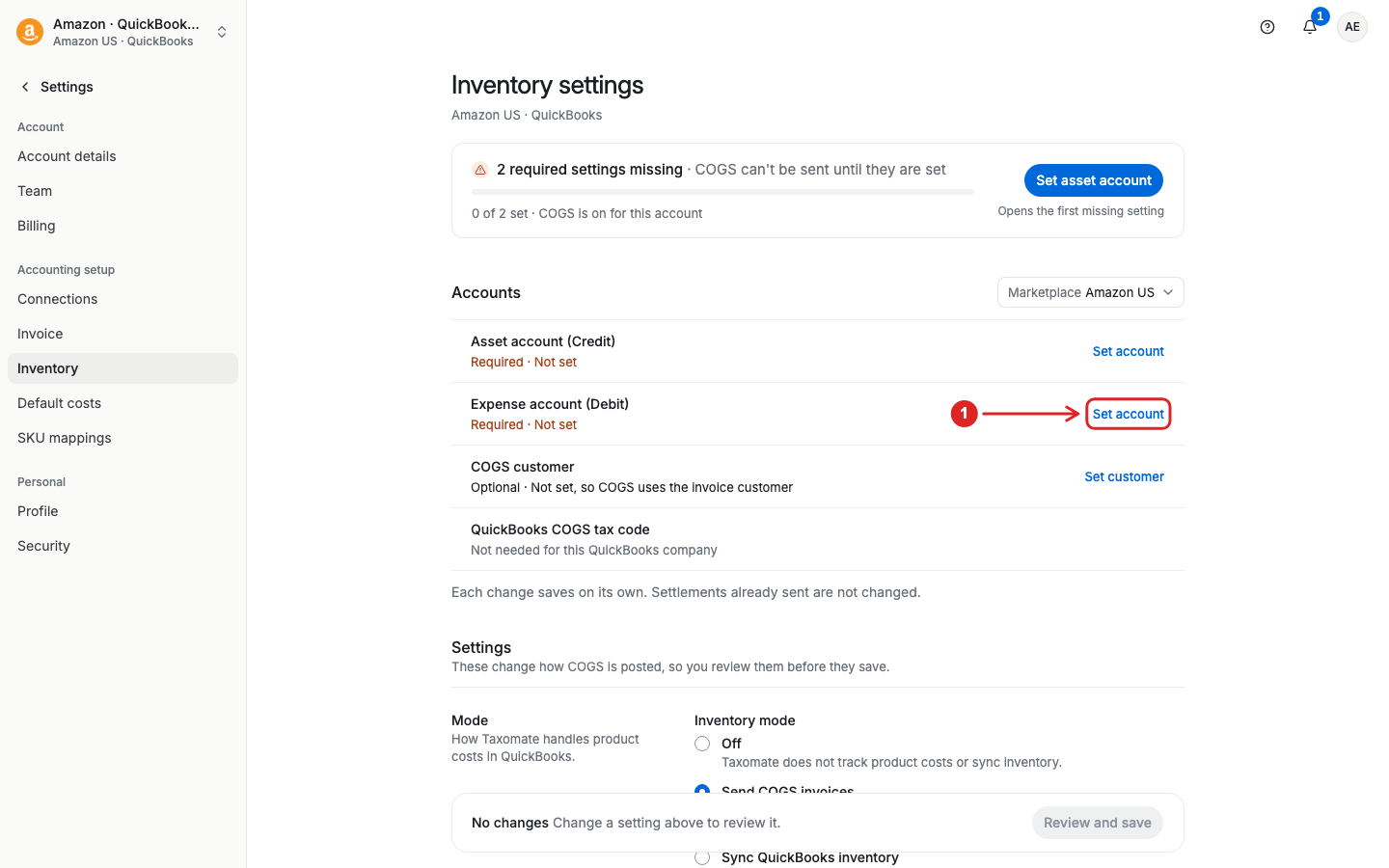
In Settings > Inventory, check the Accounts section for the selected marketplace. Set the Asset account (Credit) and Expense account (Debit). Each account change saves separately after you review it.
These settings reduce the inventory asset account and increase the COGS expense account. Assign inventory purchases and other inventory costs to the asset account you use for this workflow. Ask your accountant or bookkeeper if you are unsure which accounts to select.
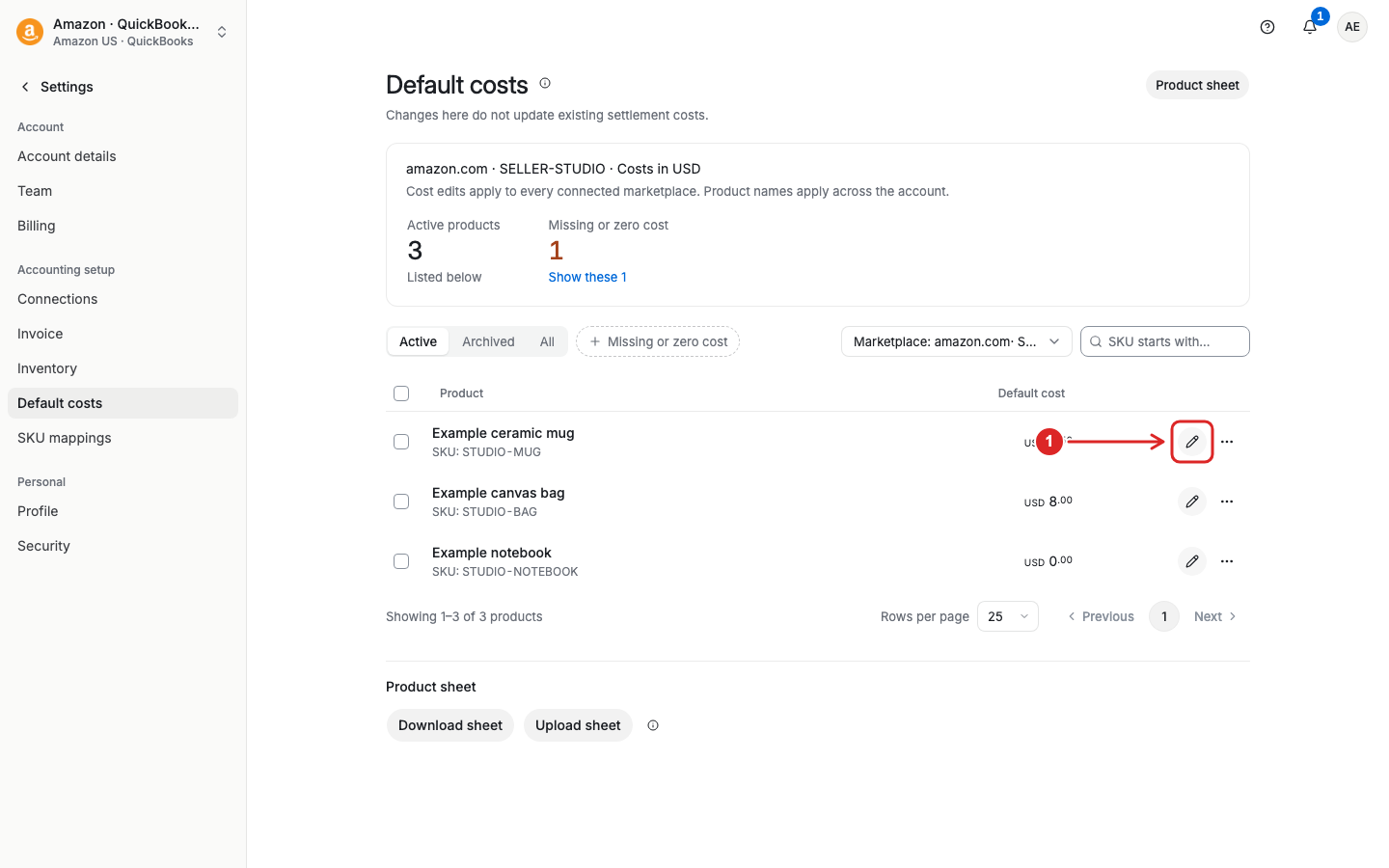
Open Settings > Default costs. Select the edit control beside a product cost, enter the average unit cost, and save it. Product names can be changed from the product's More actions menu.
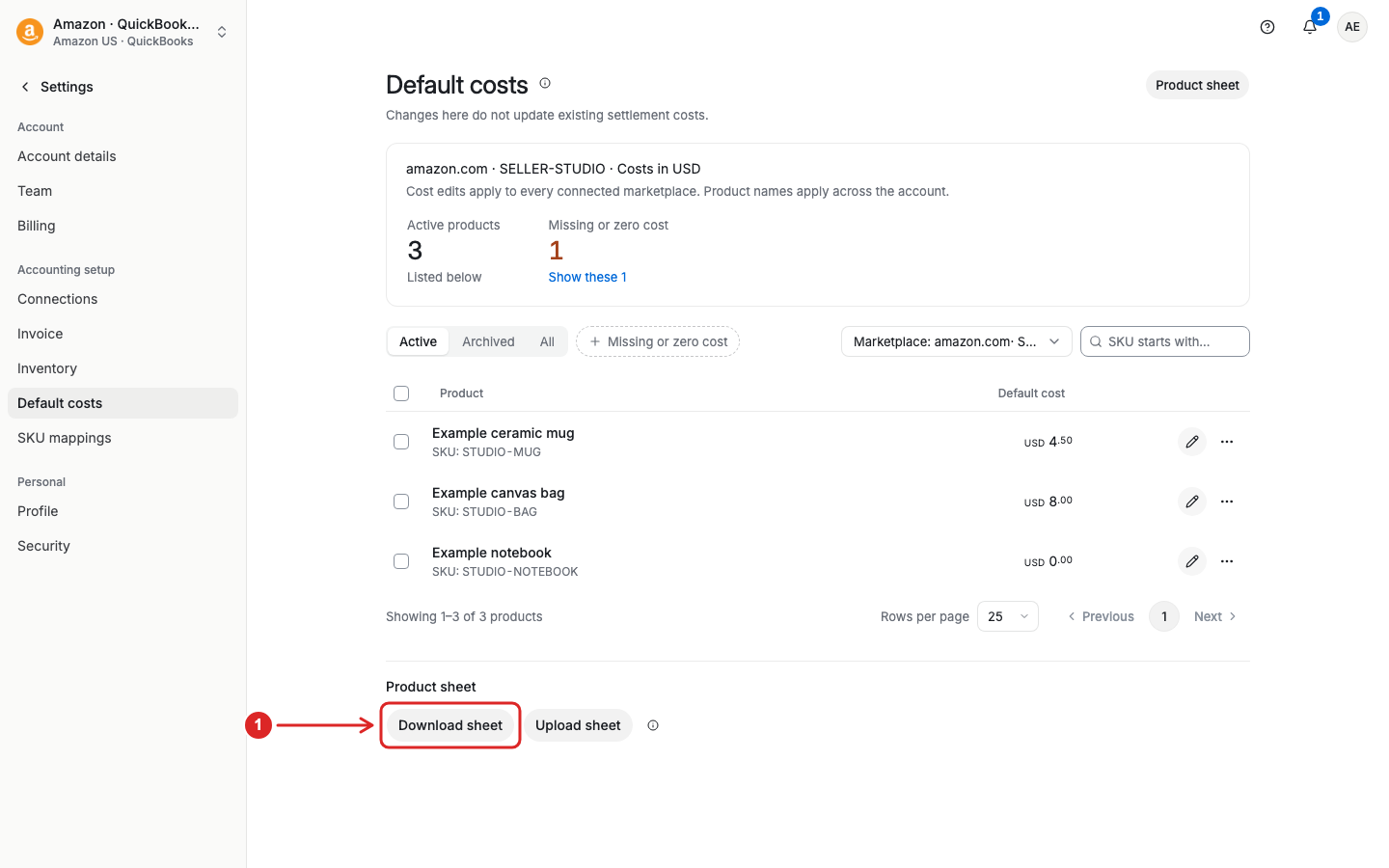
For a bulk update, select Download sheet, update the downloaded sheet, and select Upload sheet. Follow the sheet's format and the upload review before you confirm the changes.
A changed default cost does not change settlements you already imported, with one exception. If a product had no cost in a settlement from the last 15 days that you have not sent yet, Taxomate fills in the new cost for that product automatically, so automatic COGS posting can send it. A cost of $0 counts as no cost. Products that already had a cost keep it until you select Replace costs with defaults, as described below.
Open a settlement and select Cost of goods sold. Review the quantities, unit costs, and amounts in Product costs. Select a unit cost to change it for that settlement.
To use your current defaults, select Replace costs with defaults and review the confirmation. This replaces costs entered by hand for that settlement.
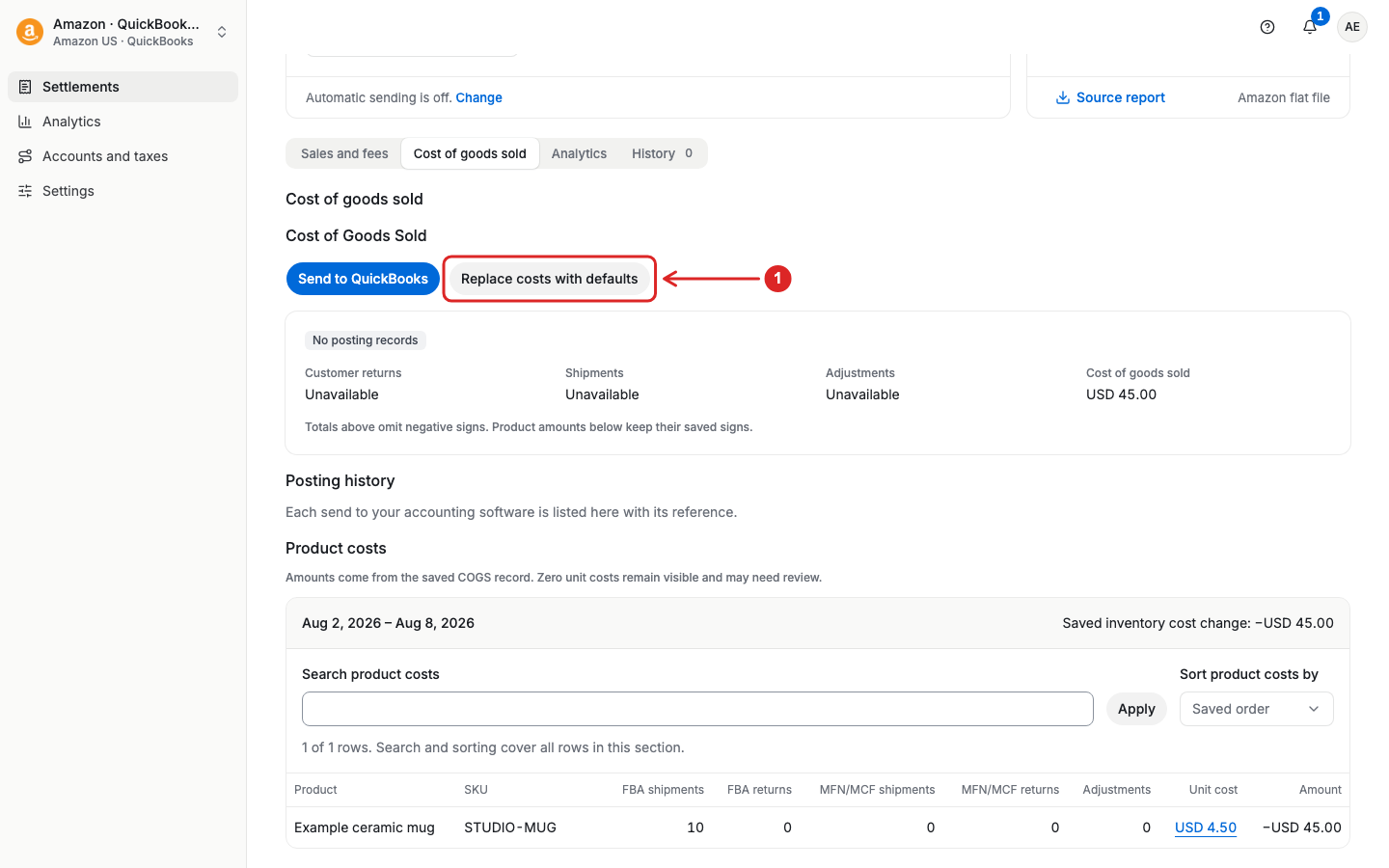
You can also select settlements on the list and use More actions > Replace costs with defaults. This replaces the selected settlements' saved product costs. Check the selection before you confirm.
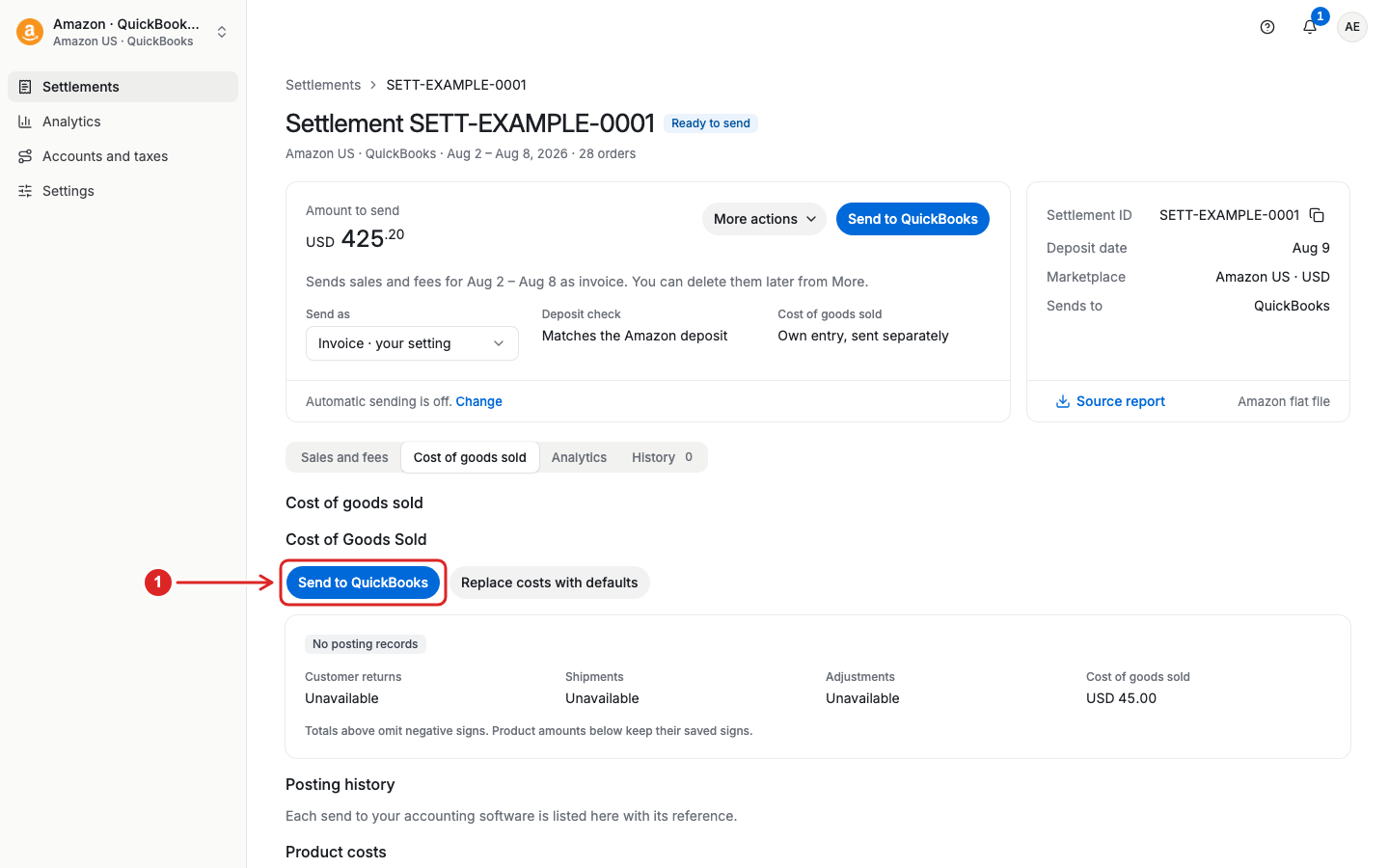
In the settlement's Cost of goods sold tab, select Send to QuickBooks, Send to Xero, or Send to Wave within the COGS section. Review the confirmation before you send.
The send button at the top of the detail page sends sales and fees. Use the control inside the COGS tab to send product costs.
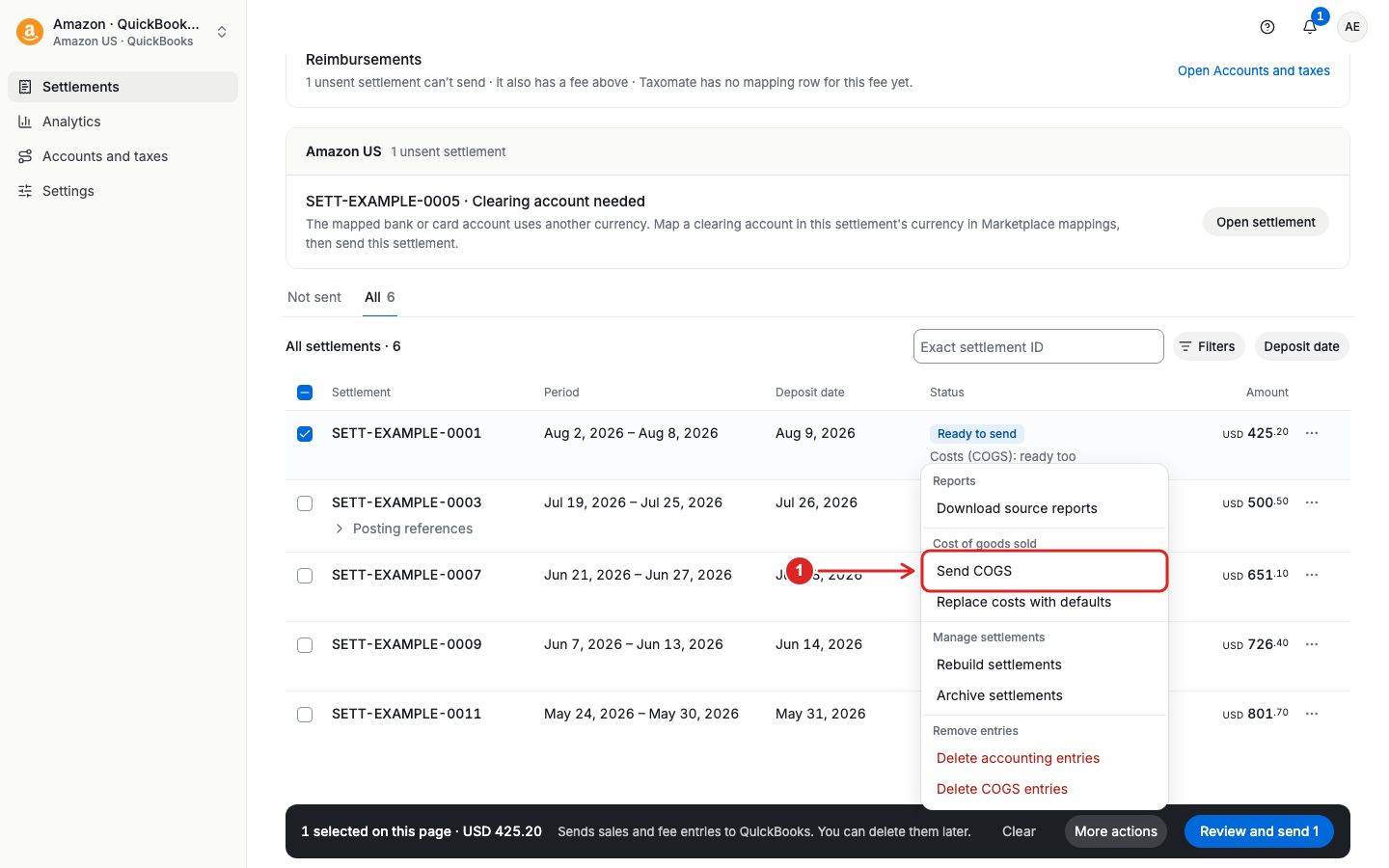
To send several COGS entries, select the records on the list, then select More actions > Send COGS. Review the selected records and confirm.
Open Settings > Inventory and turn on Automatically send COGS. Select Review and save, review the changes, and confirm.
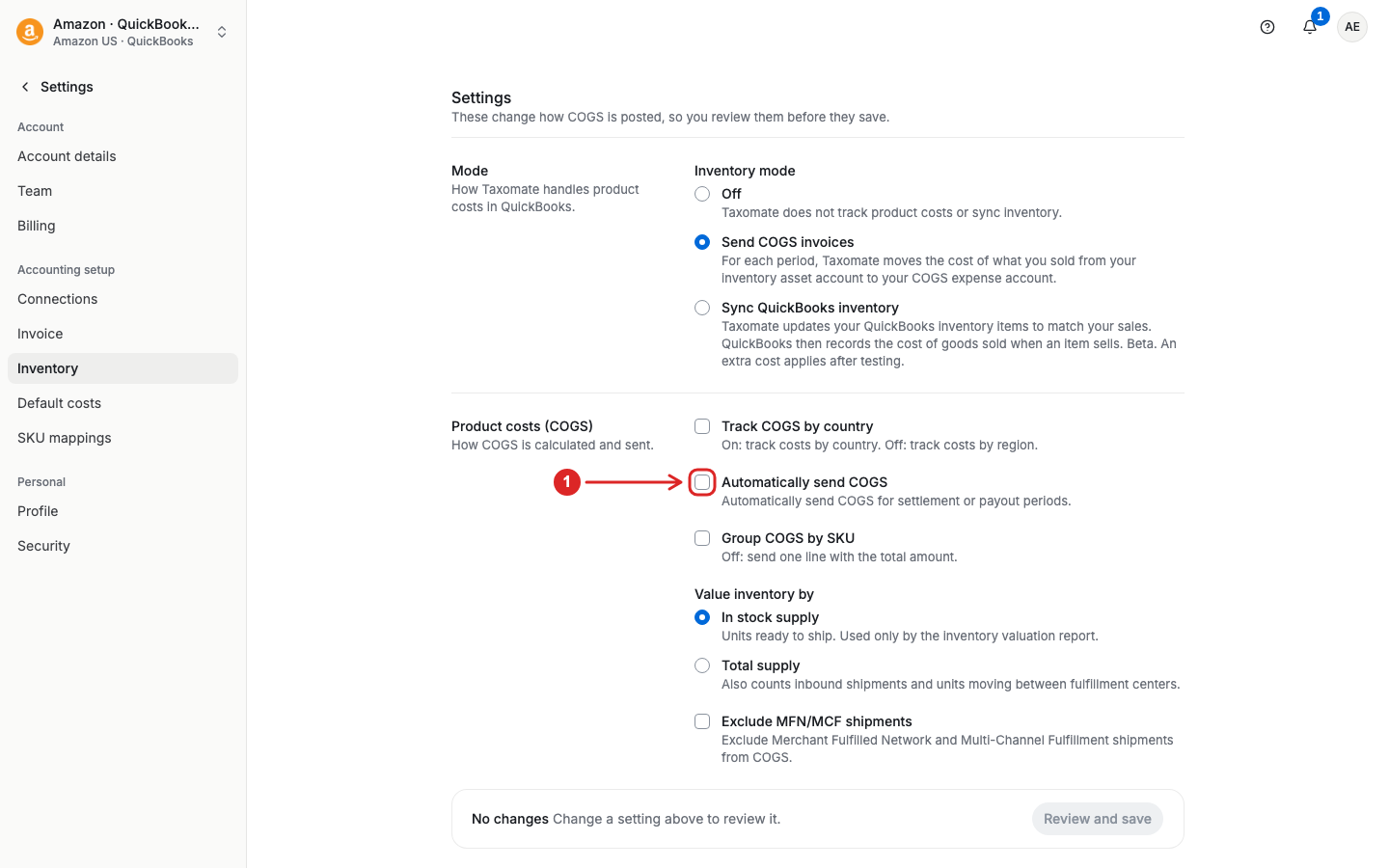
COGS also follows First period to send in Settings > Invoice. Taxomate holds automatic COGS sending for periods that start before that date. Check your costs and accounting software before you enable automatic sending.
