
Taxomate works with QuickBooks Online Classes. This helps if you want to track your transactions separately for each Amazon marketplace country and run Profit and Loss reports.
Step 1. Set up Classes in QuickBooks
In QuickBooks Online you have to set up classes first. Click here for directions, or follow these steps.
Select the Settings icon in the top right corner of QuickBooks.
Choose Account and Settings from the menu.
Select Advanced Settings, then the Edit icon to the right of the Categories section.
Check the box next to Track classes to turn them on, and select Save.
Go back to the Settings icon and choose "All lists" in the menu.
Select Classes.
Add your marketplaces by selecting the New button in the top right corner.
Step 2. Map each marketplace to a class
In Taxomate, go to Settings > Connections and select Manage marketplace mappings. For each marketplace:
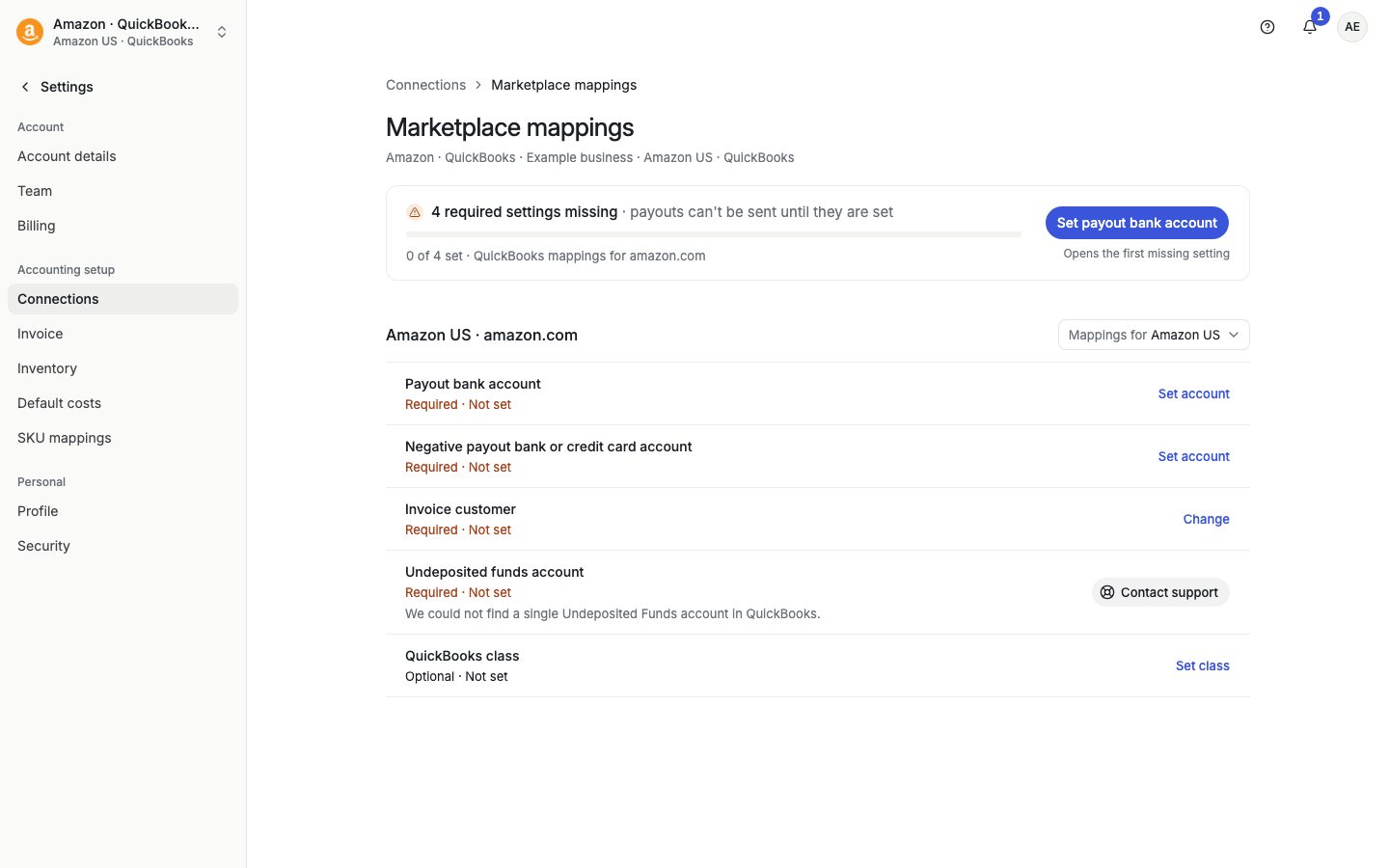
Pick the marketplace next to Mappings for (if you have more than one).
On the QuickBooks class row, select Set class (or Change).
Choose the class you made, then select Save class.
You can also create a new class here. Select Create class in the QuickBooks class box ("not in the list? Add it to QuickBooks here") and follow the steps. Taxomate adds the class in QuickBooks. It does not assign the class until you select it.