
(Old title: Step 1: Create Account & Select Plan. The plan moved to the new Step 2. This step is the phase "Your business" in the app.)
1. Create your account
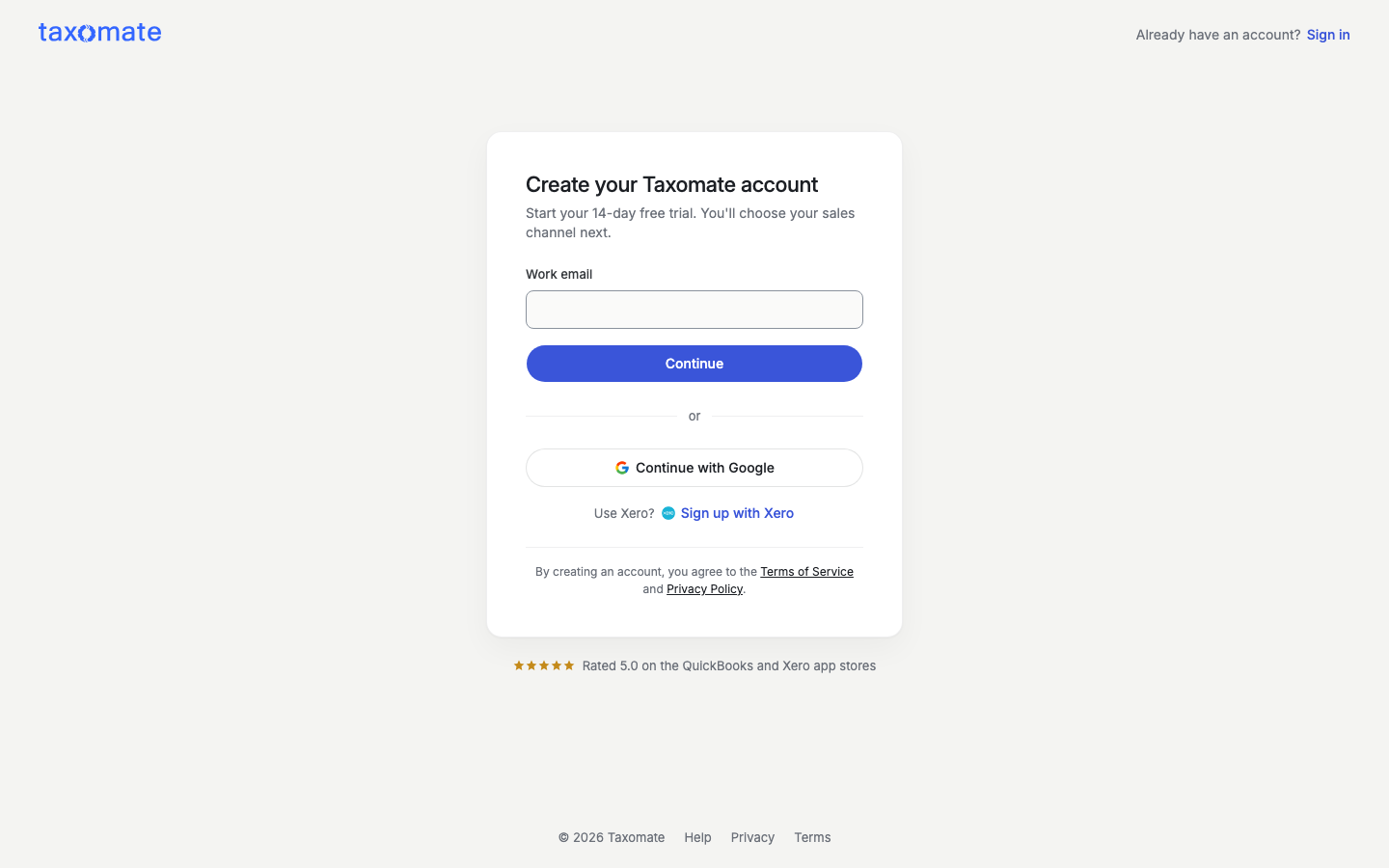
On the sign-up page, enter your Work email and select Continue. Or select Continue with Google. If you use Xero, select Sign up with Xero. If an account already uses the email, the page says so and links to Sign in.
On the next step your email shows at the top. Select Change if it is wrong. Enter your First name and a Password, then select Create account. The password needs 12 or more characters, upper and lower case, a number, and a symbol. The page shows each rule when you start to type.
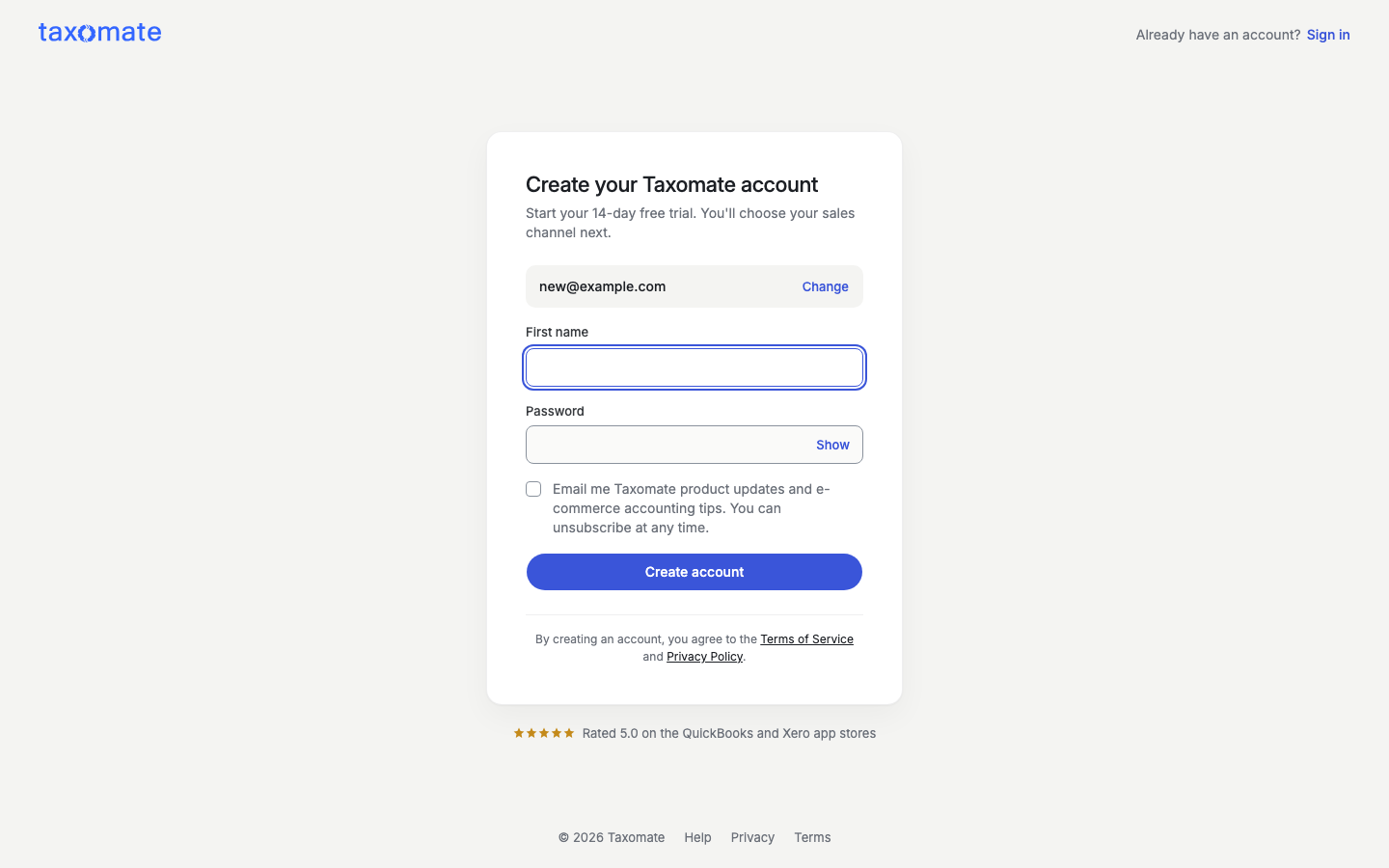
The box Email me Taxomate product updates and e-commerce accounting tips. You can unsubscribe at any time. is not ticked. Tick it only if you want these emails.
Taxomate emails you a 6-digit code. The subject is "Welcome to Taxomate". On Verify your email, enter the code and select Verify and continue. Select Send a new code if it does not arrive. Check your spam folder.
You start a 14-day free trial.
2. Choose your sales channel
Quick Setup asks Where do you sell? It says one sales channel per account, and you cannot change it later. Choose Amazon, Shopify, Walmart, eBay, Etsy, or TikTok Shop, then enter an Account name and select Continue. Have the login for your sales channel and your QuickBooks, Xero or Wave login ready (for Shopify: QuickBooks or Xero).
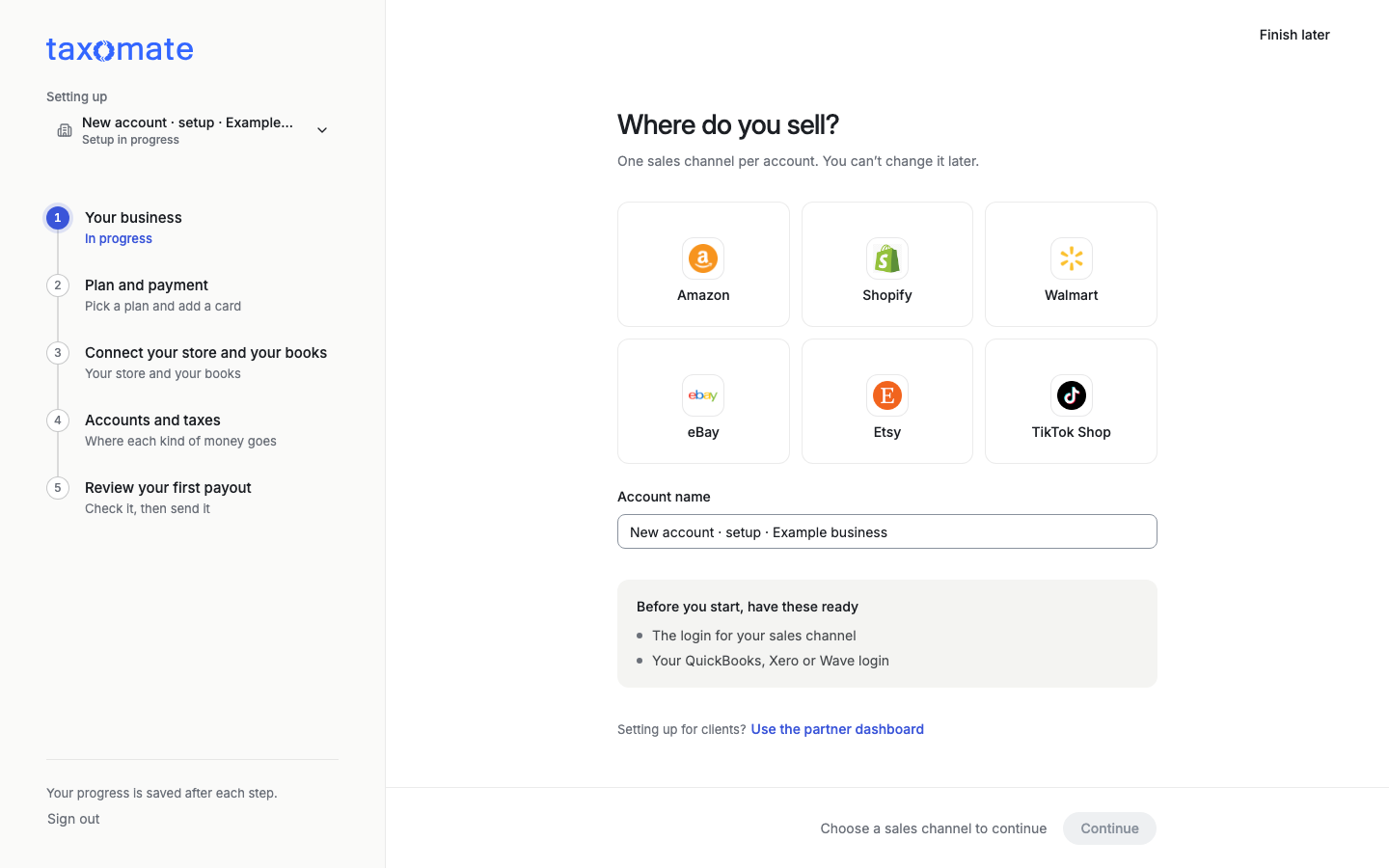
If you plan to use the multi-channel plan, you can connect another channel after your first setup. Use Create another account in the account switcher.
If you set up for clients, select Use the partner dashboard.
GO TO STEP 2