(Old title: Step 2: Connect Sales Channels & Accounting Software. This is phase 3 of 5 in the app. The article keeps its old URL.)
Before you connect Wave: Wave needs an active Pro Plan or Wave Advisors package for third-party API connections such as Taxomate. The free Wave tier cannot connect to Taxomate. Review Wave's current API plan requirement.
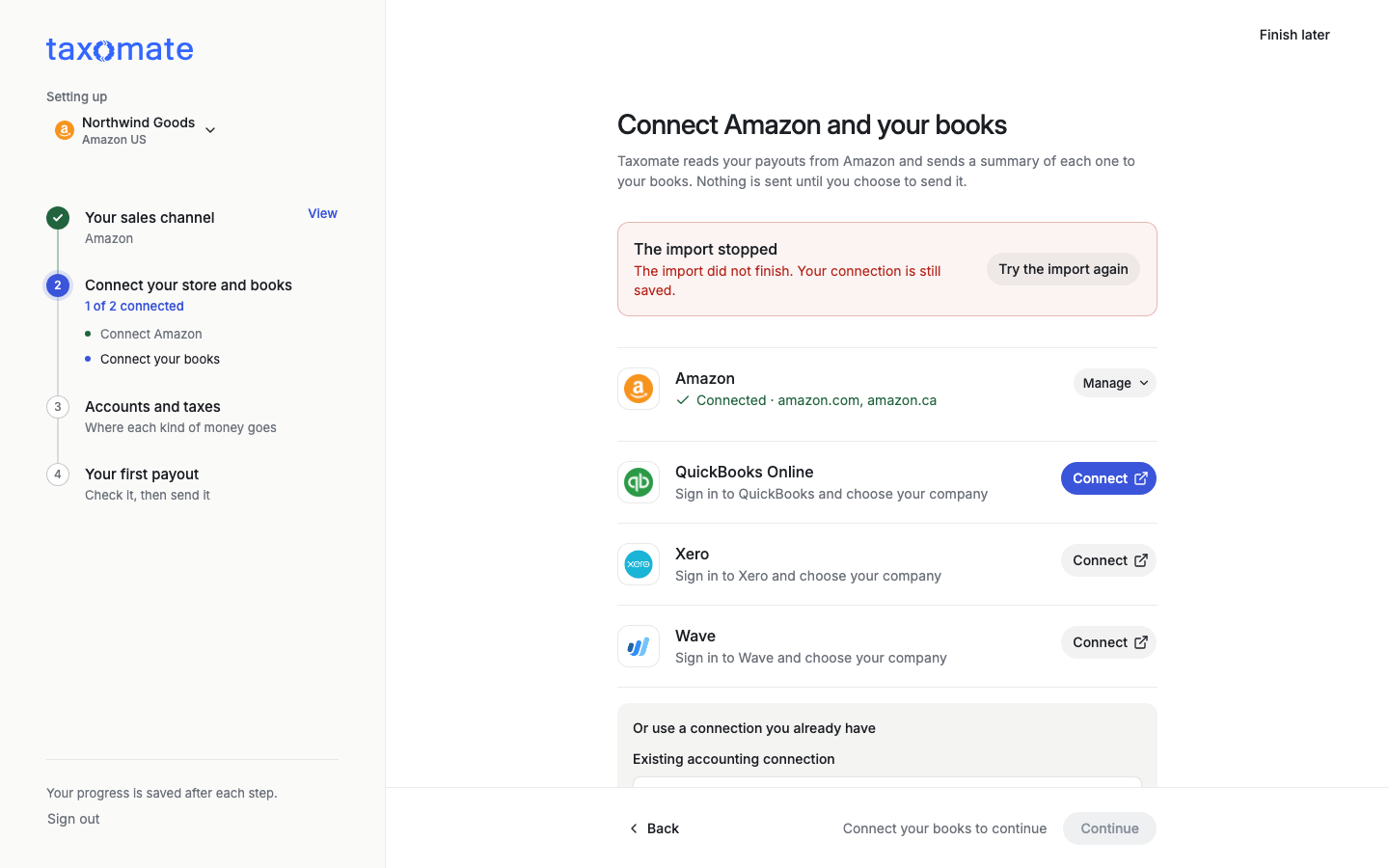
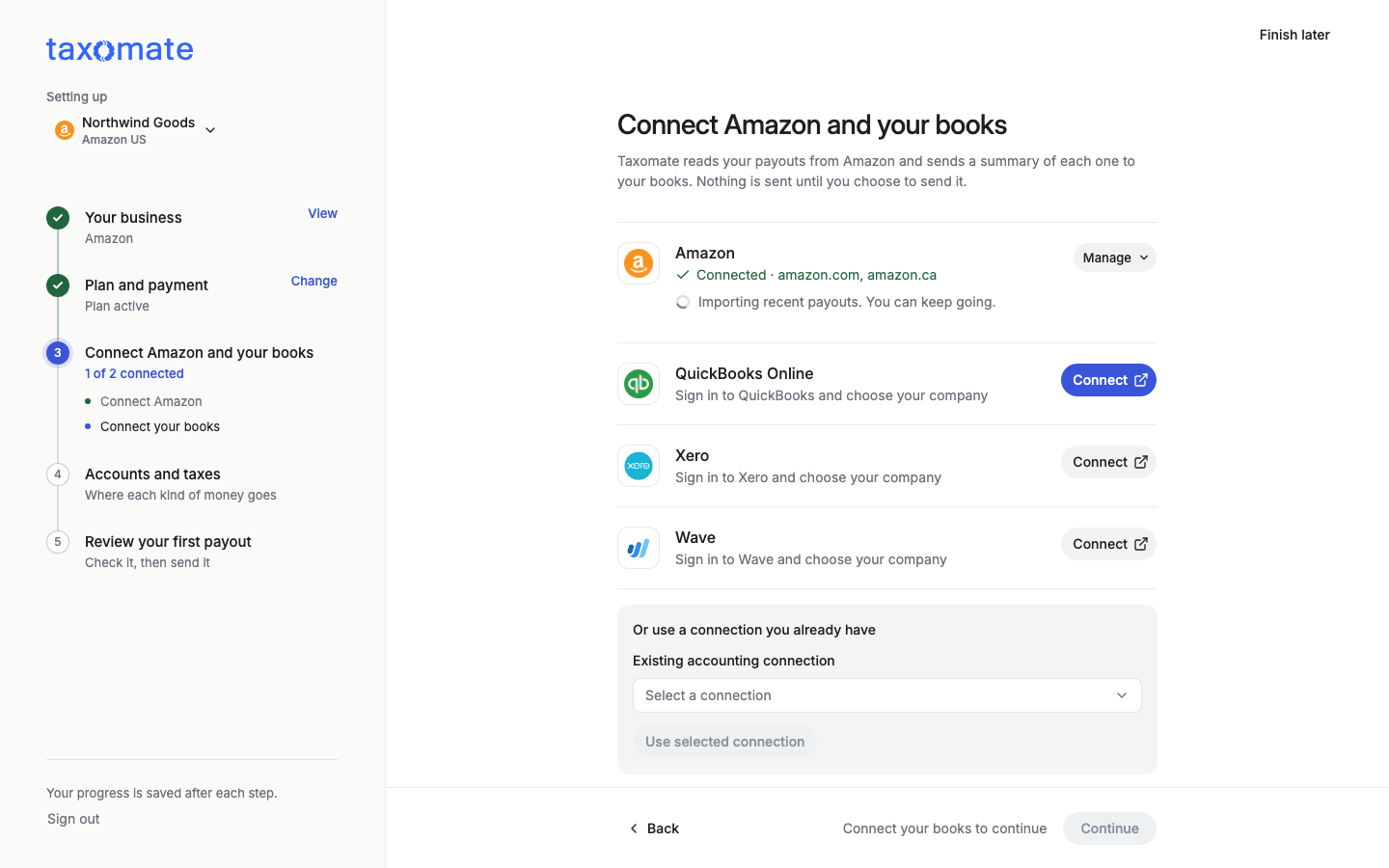
The phase is called Connect {your store} and your books, for example Connect Amazon and your books. It shows "1 of 2 connected" while you connect. Taxomate reads your payouts from your store and sends a summary of each one to your books. It sends nothing until you choose to send it. Selecting Connect goes straight to the other site. You come back to Taxomate when you finish there.
Select Connect Amazon. Choose your region and the marketplaces you want (you can pick several in a region; for example amazon.co.uk, amazon.de, amazon.fr, and amazon.it in Europe). No marketplace is ticked for you. You can add more later.
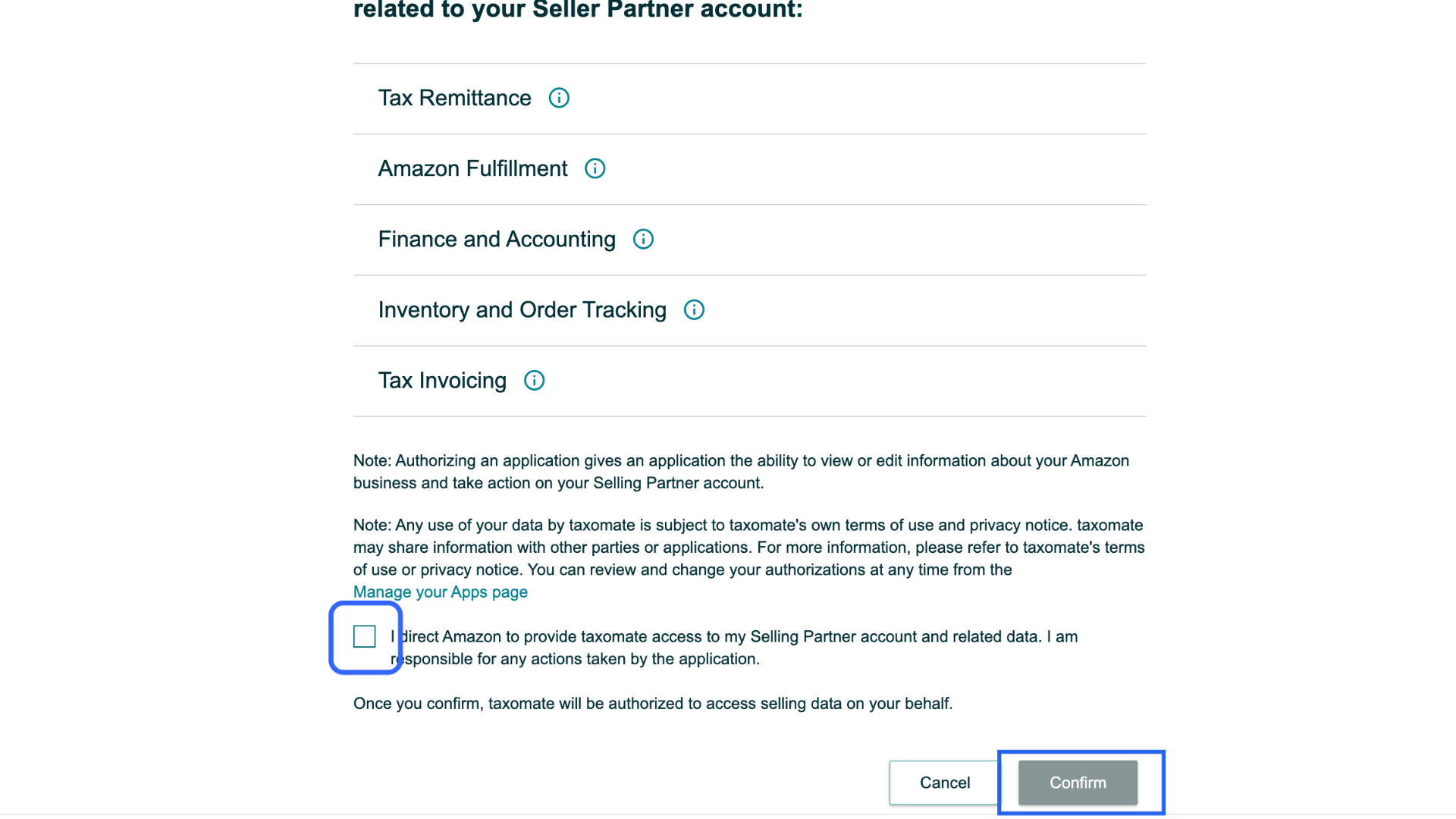
Sign in to Amazon and confirm access to your seller account.
Amazon shows Connected with the marketplaces and says "Importing recent payouts. You can keep going." You do not have to wait. For a large account you can see Still importing your Amazon payouts. Keep setting up, or leave and come back.
If the page says The import stopped, your connection is still saved. Select Try the import again. If a report import is paused (settlement, VAT, inventory, or reimbursement reports), this step lists it, the same as Settings > Connections.
If a part of the page did not load, you see "This did not load. Nothing changed. Check your connection and try again." Select Try again. This only reads your setup again. It does not change anything.
If you land on a page that says the sign-in does not match, you used a different Amazon, Shopify, or Etsy account than the one already connected. Go back and use the same account.
Walmart: select Connect on the Walmart row. Sign in with a Walmart seller account that can approve apps, and approve the access that Taxomate asks for. Walmart sends you back to Taxomate. You do not need a Client ID or a Client Secret. Taxomate supports Walmart.com (United States).
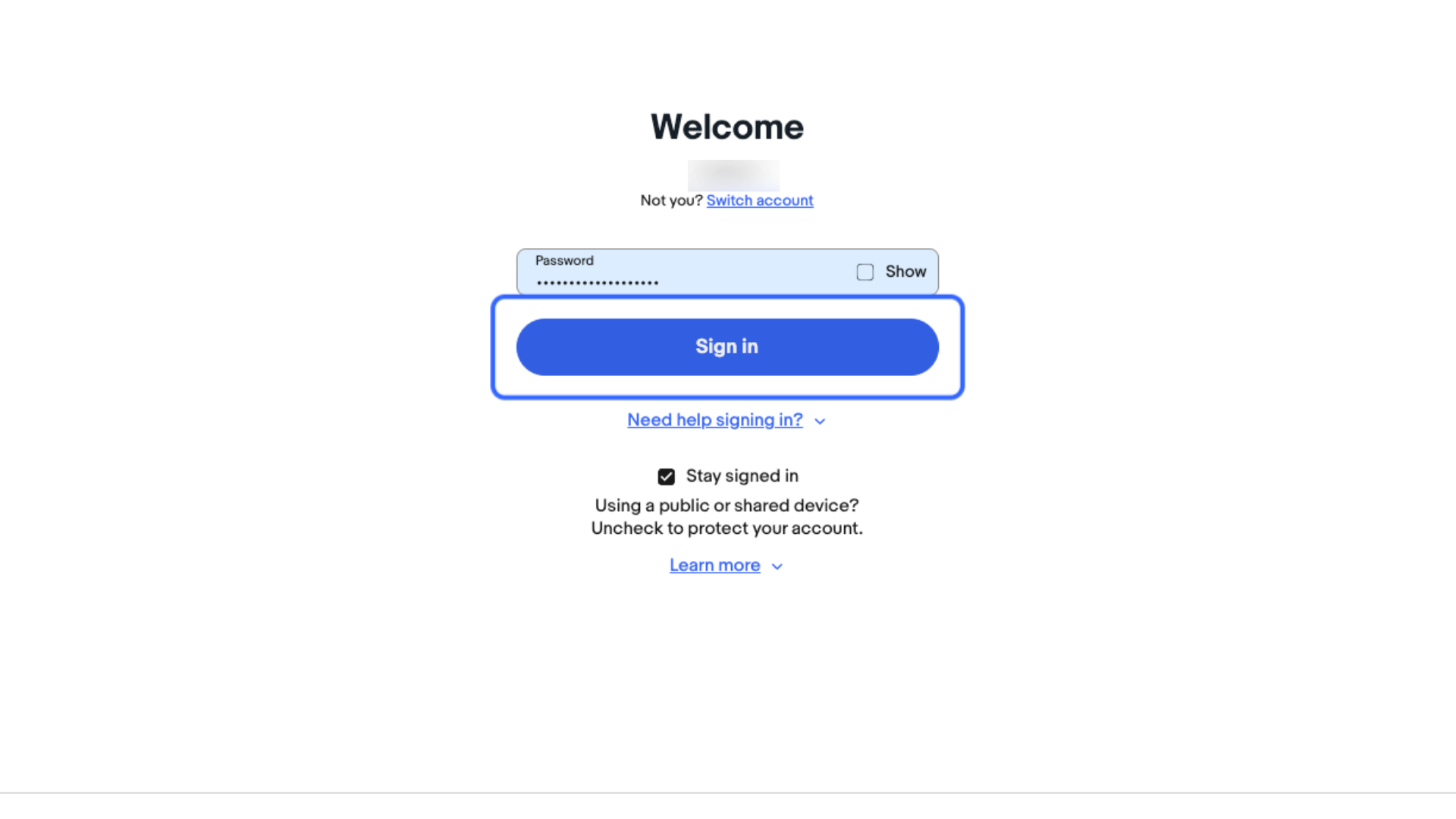
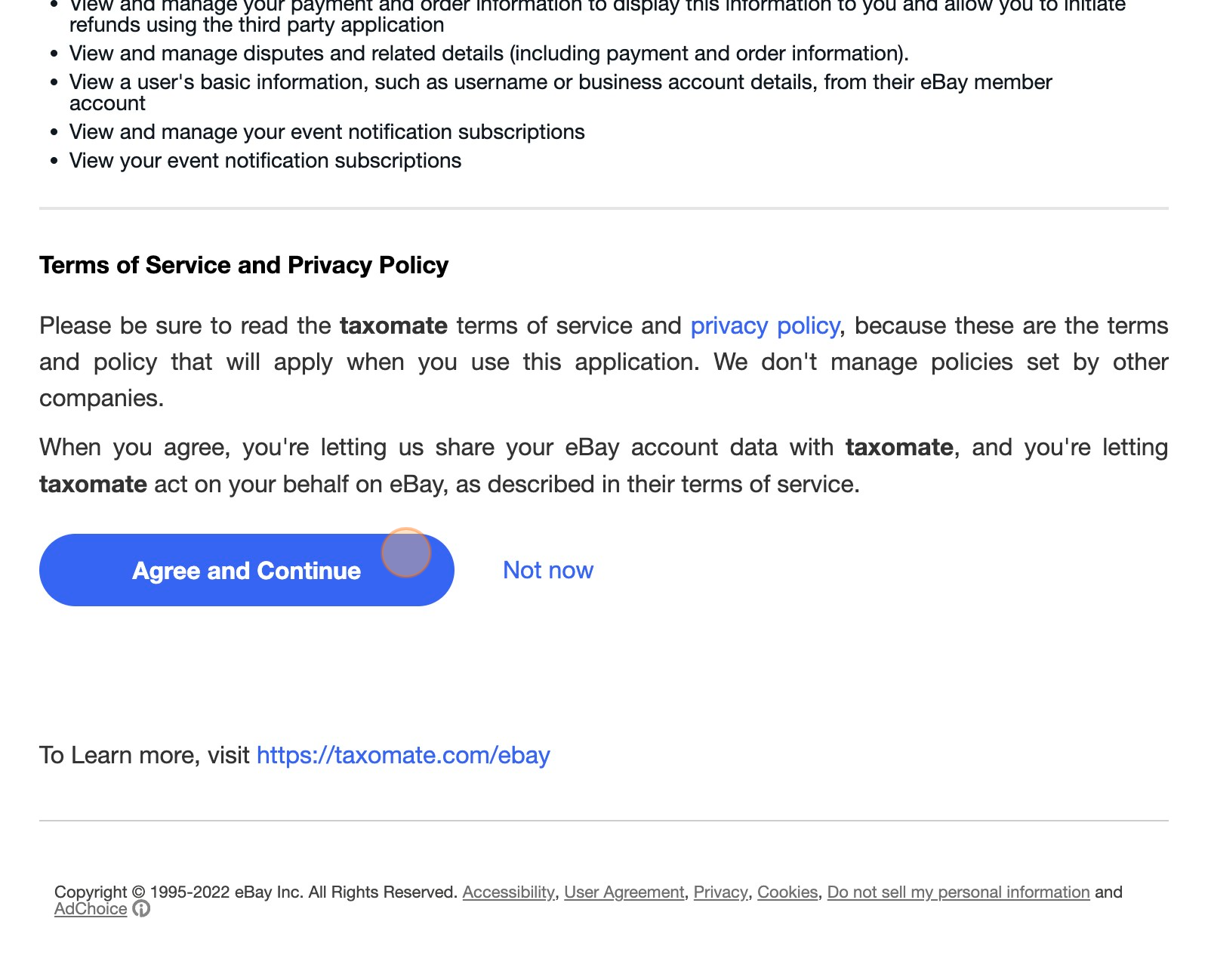
eBay: select Connect, log in to eBay, and select Agree and Continue.
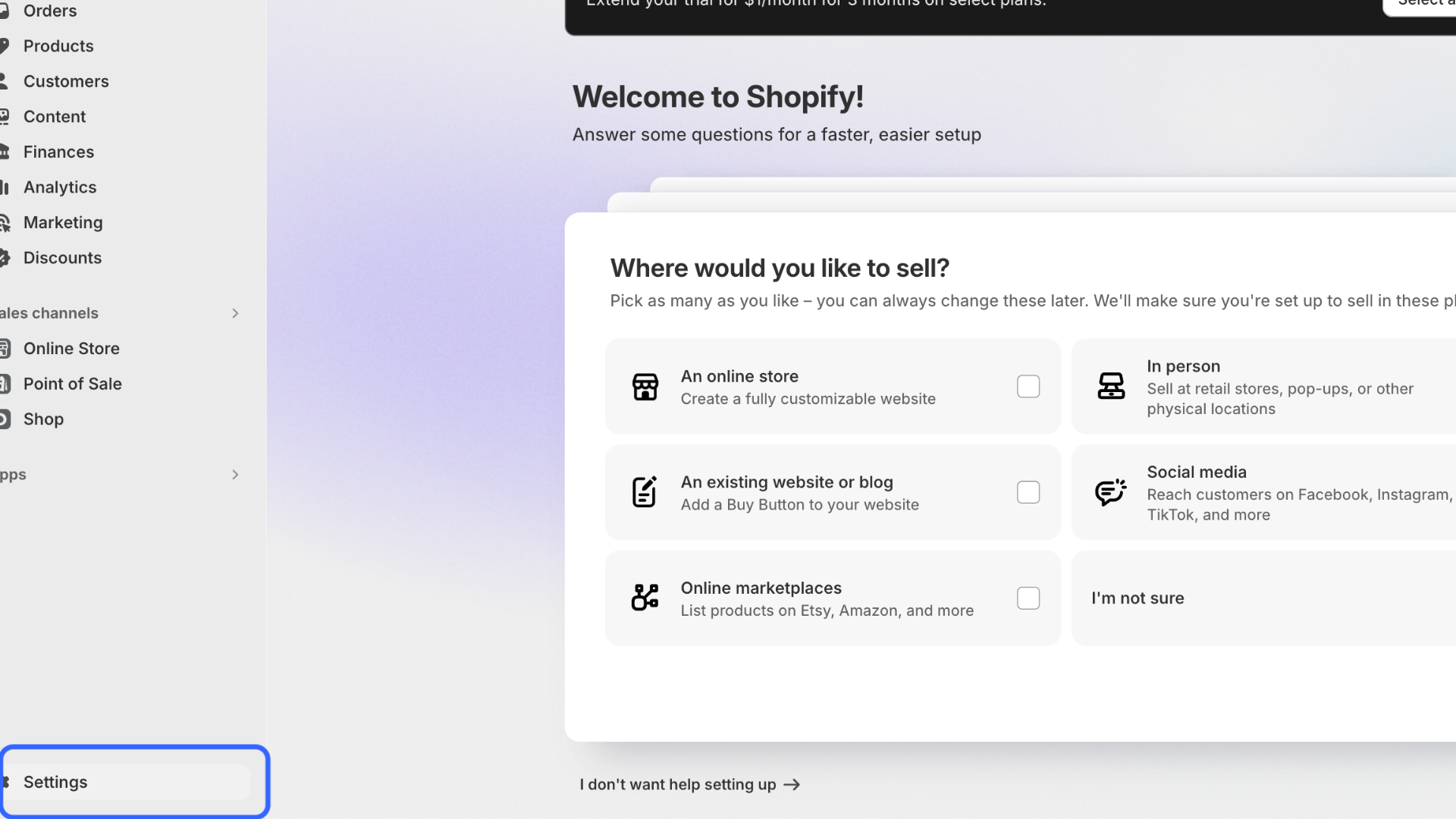
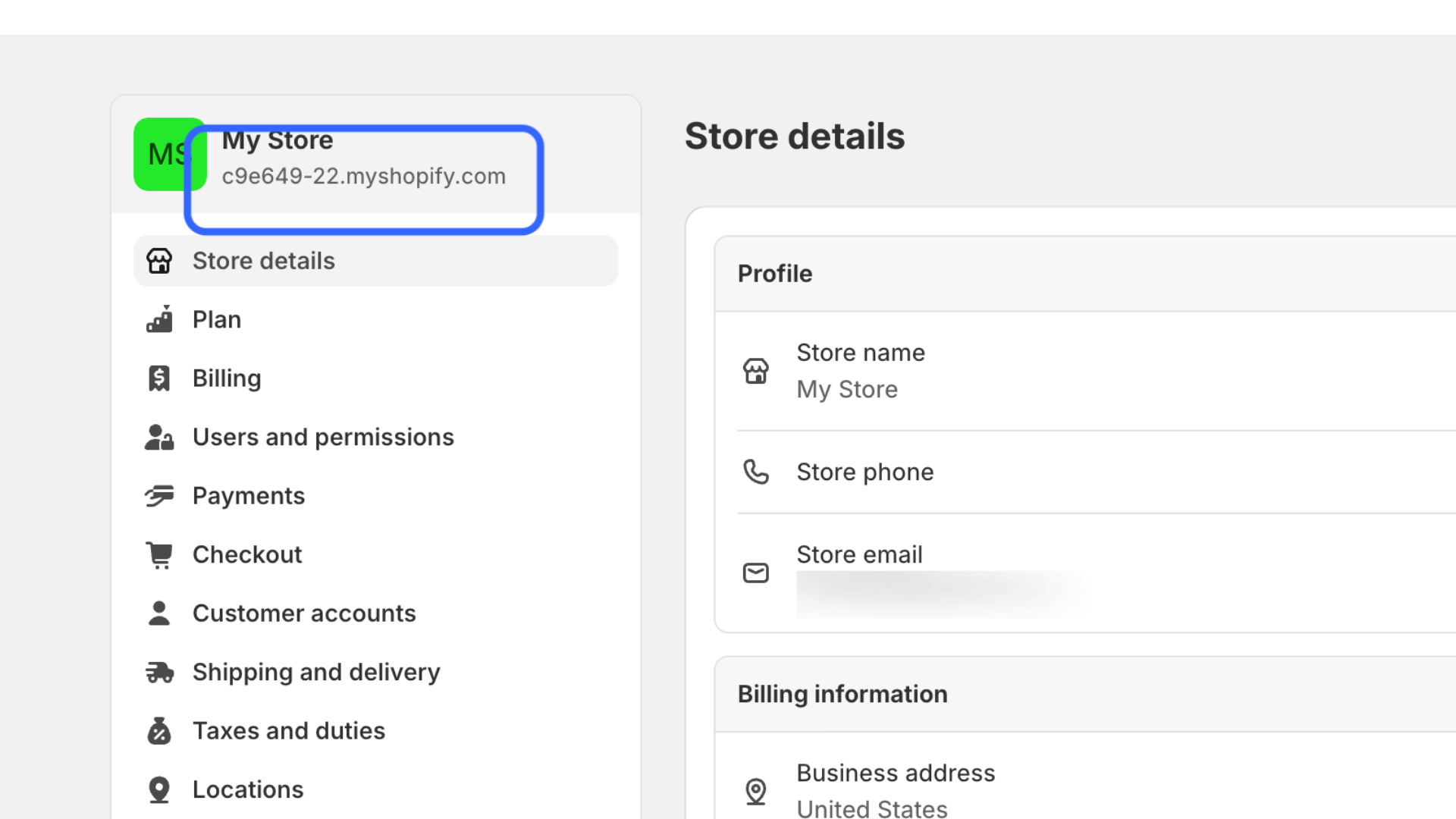
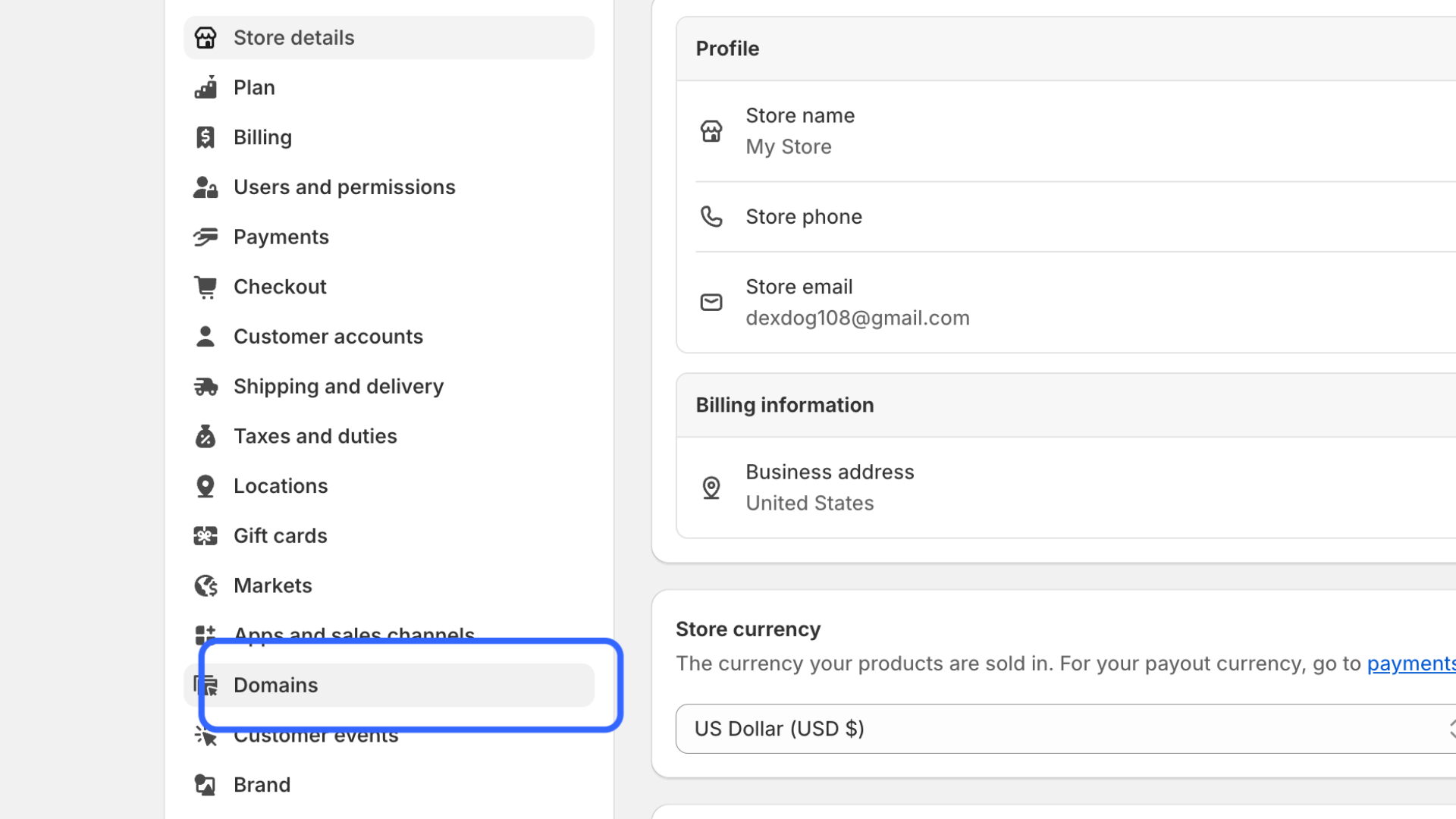
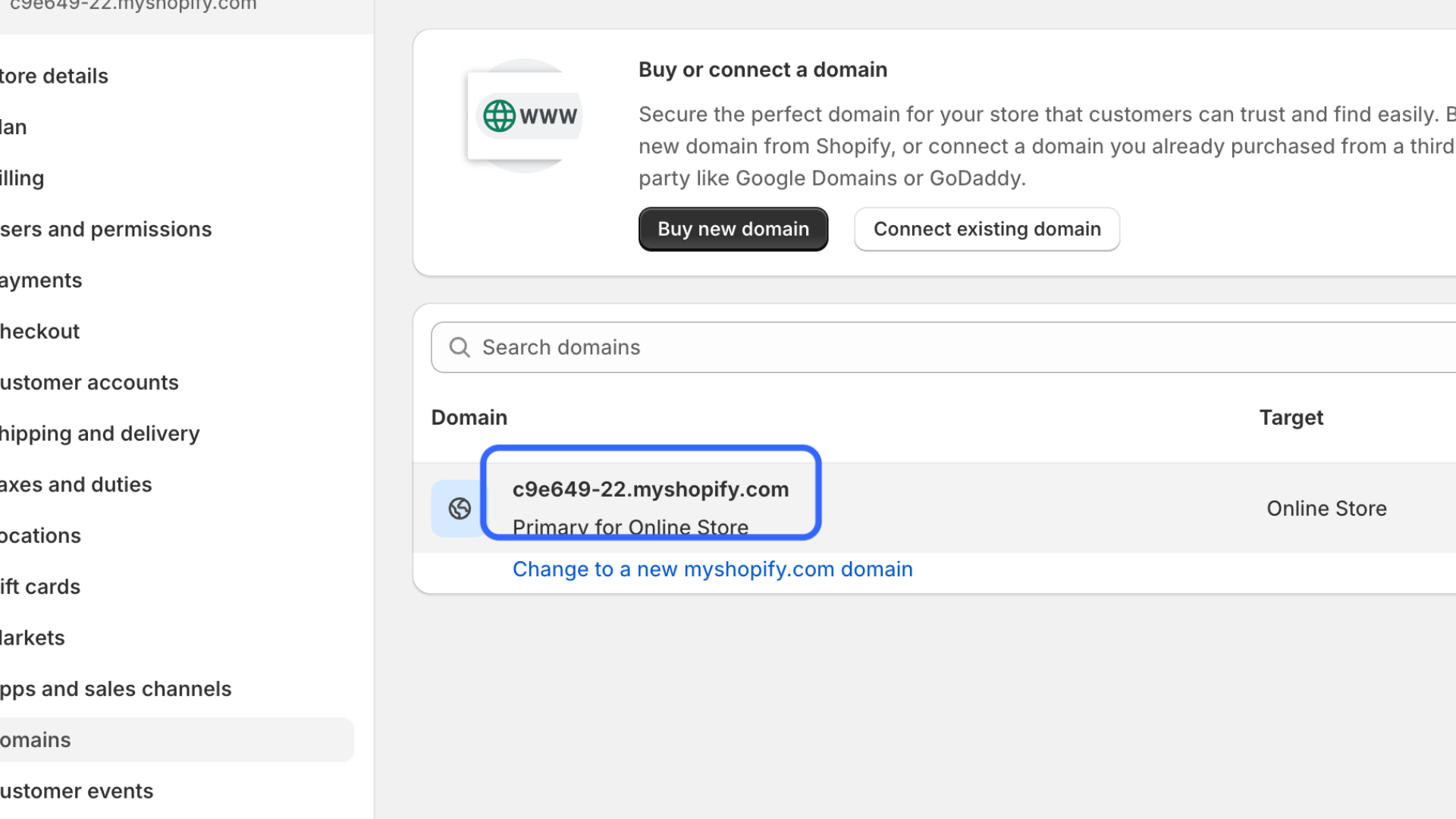
Shopify: find your store name (the part before .myshopify.com), enter it in the store name box, and select Connect. Then install Taxomate and grant access.
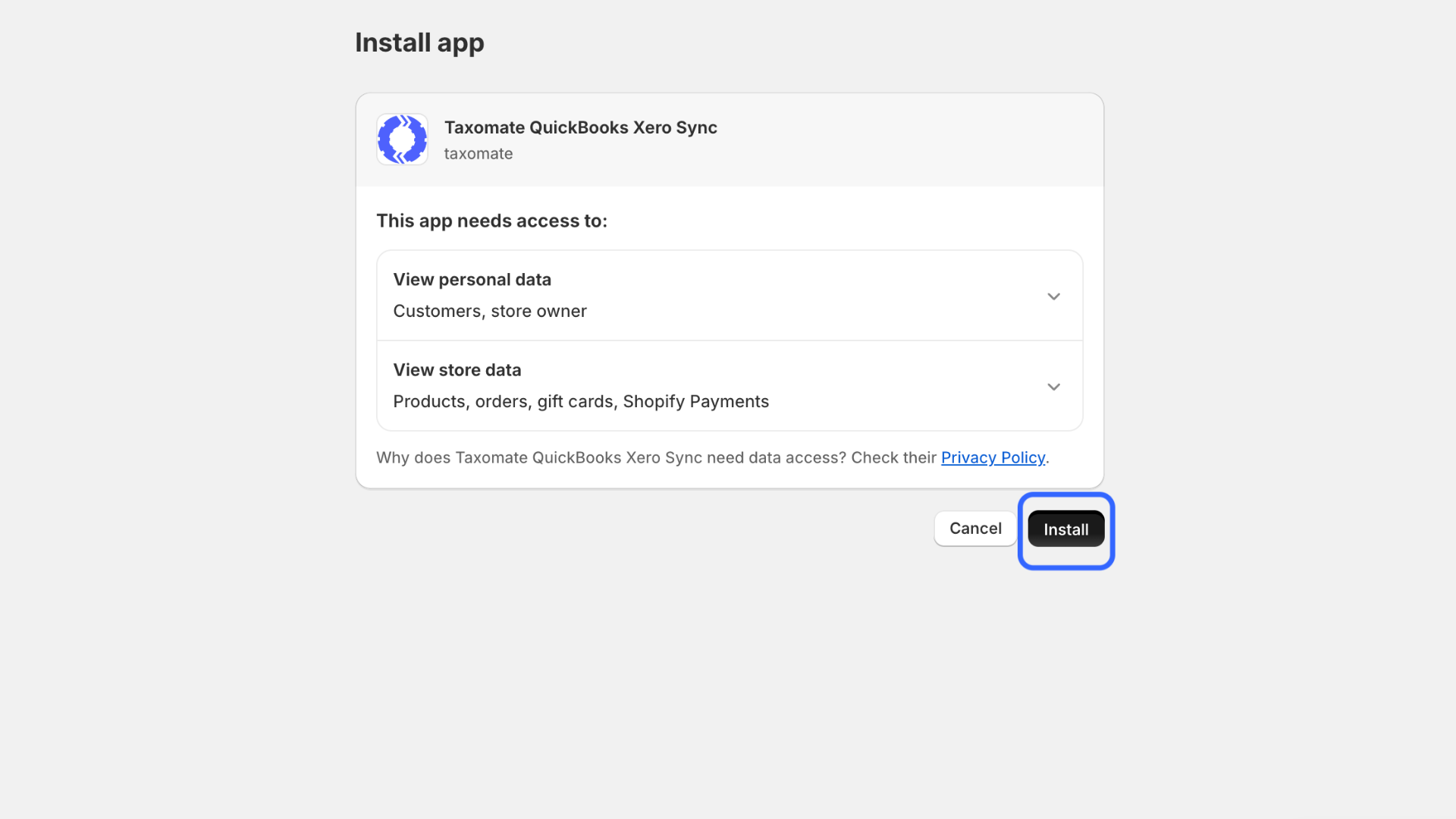
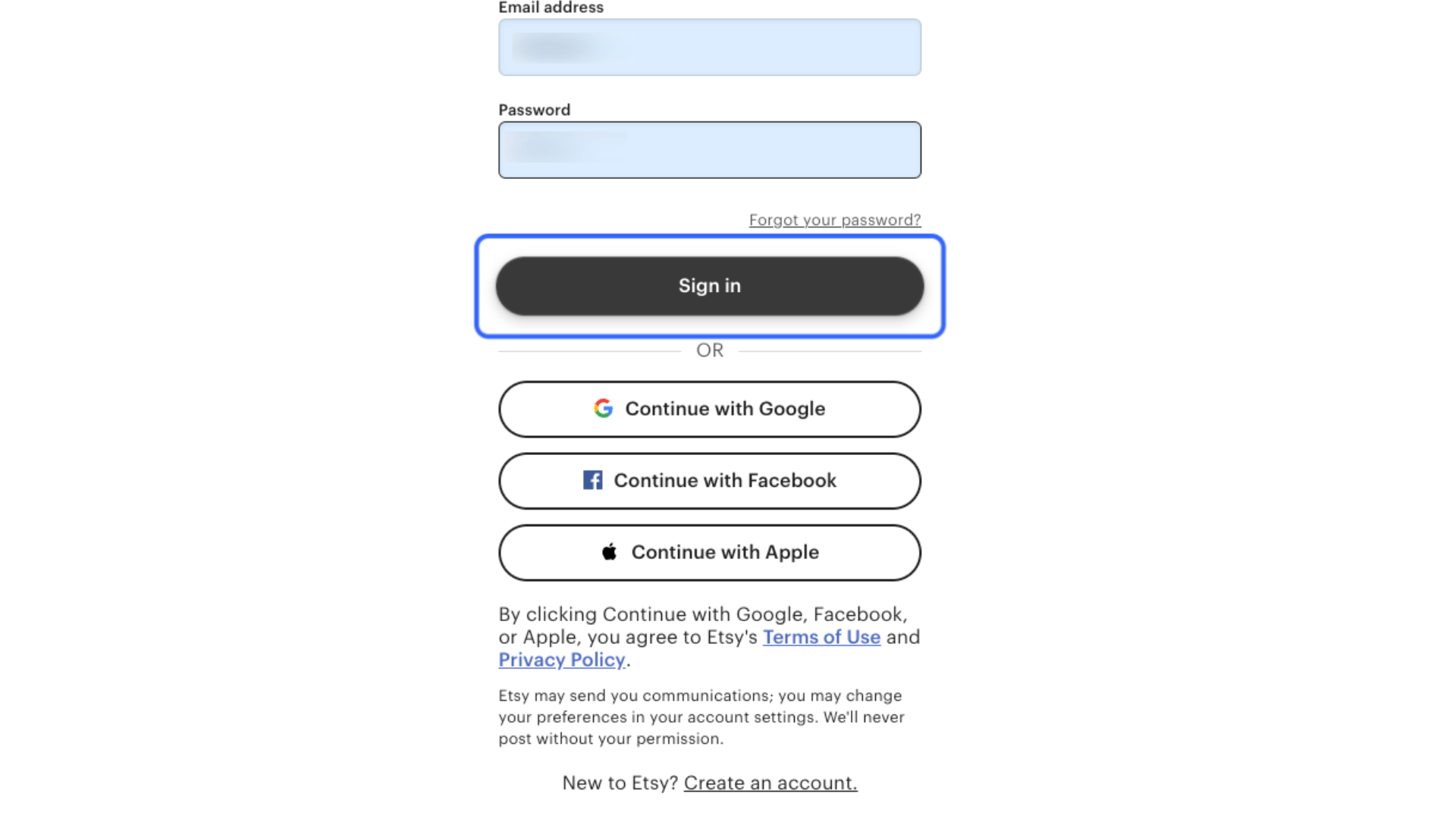
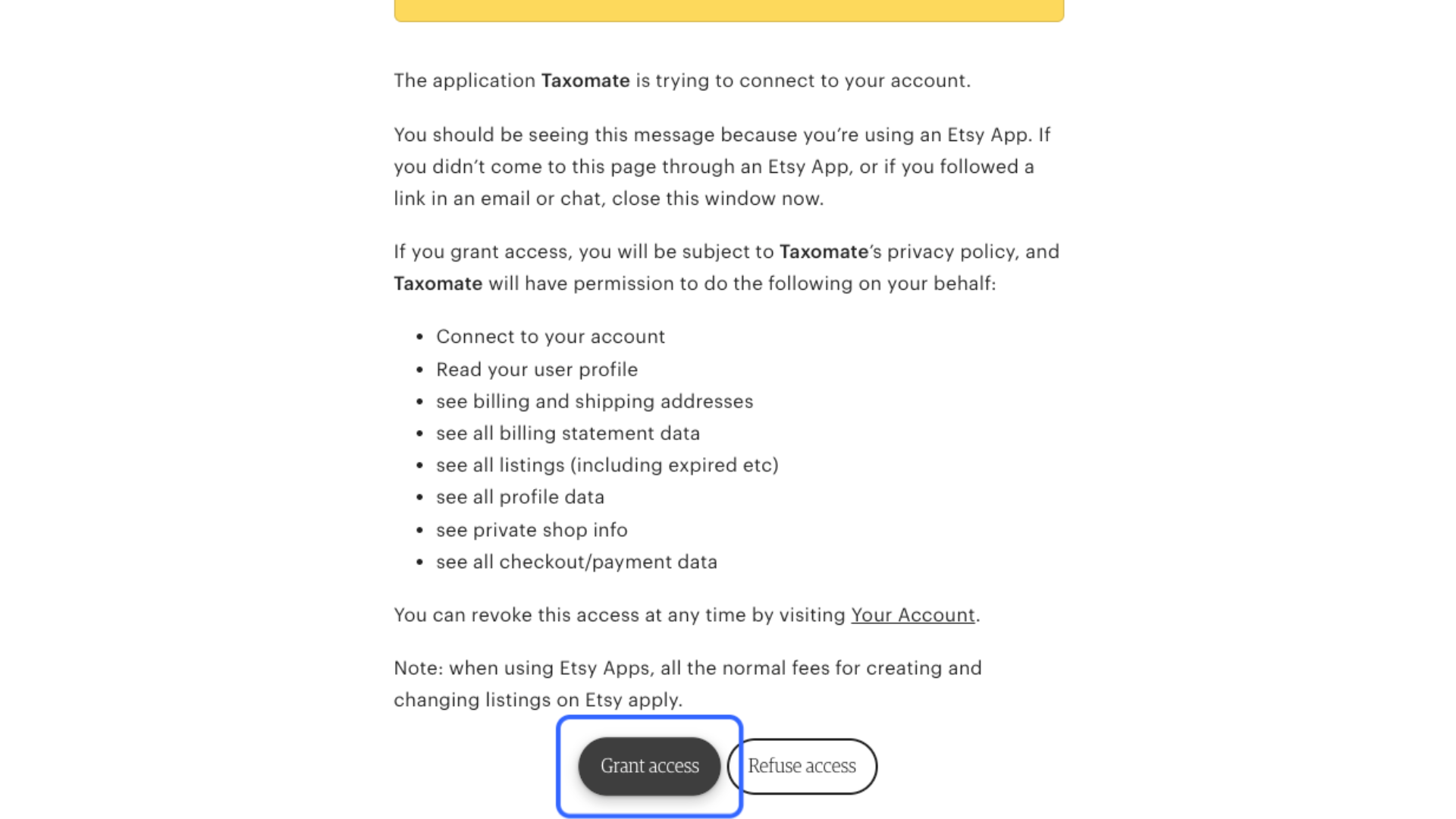
Etsy: select Connect, log in to Etsy, and grant access.
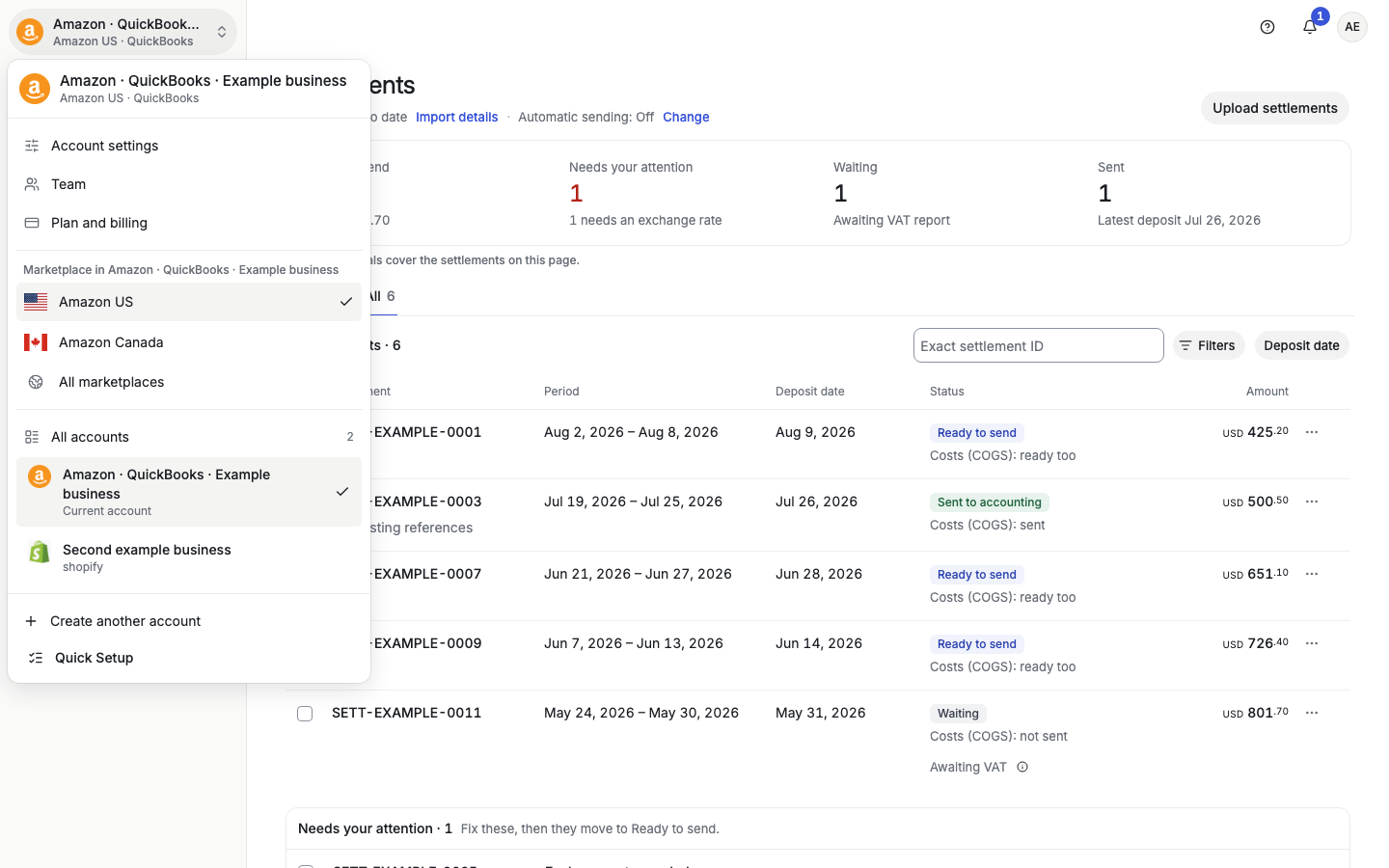
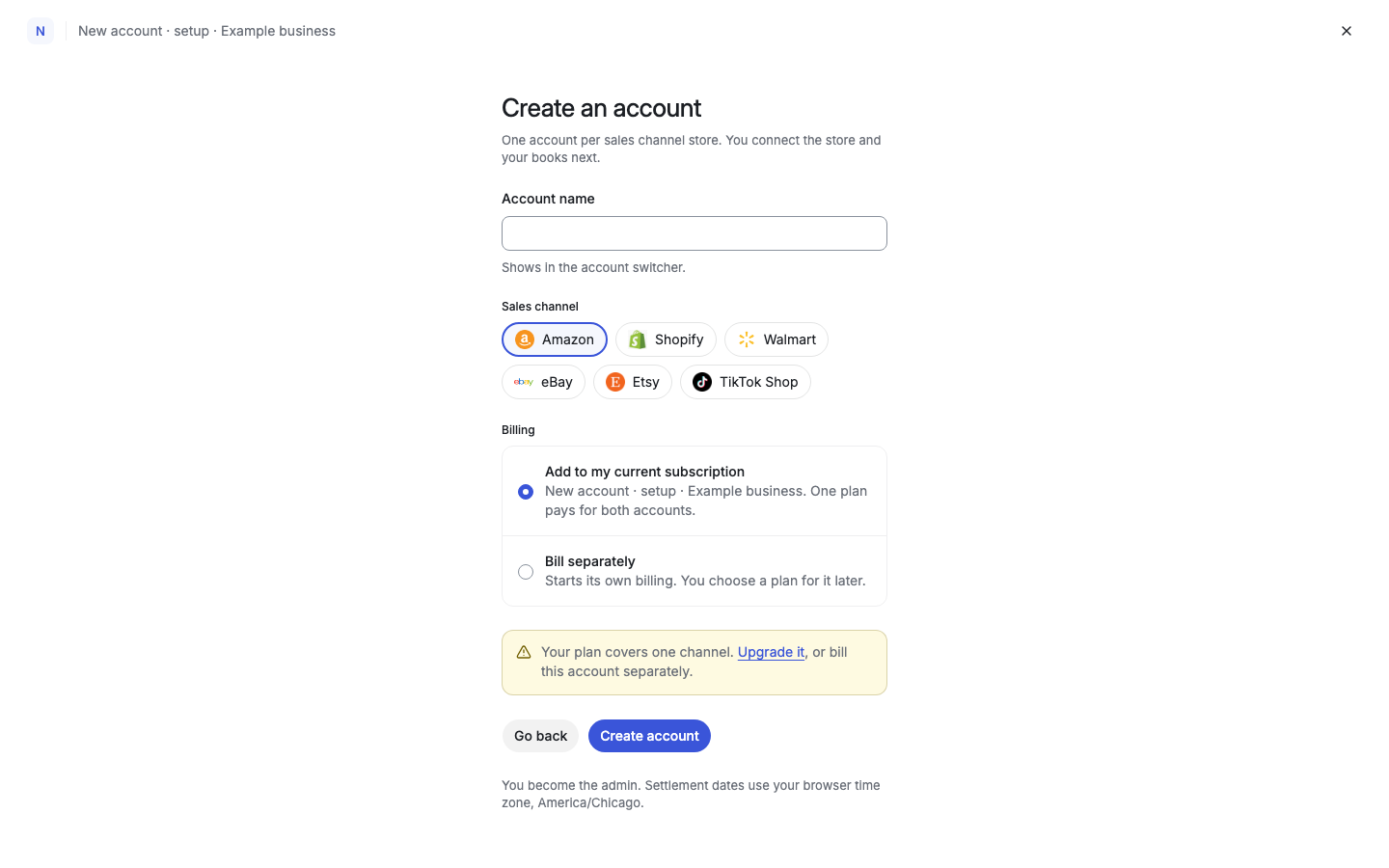
Open the account switcher and select Create another account. Choose the sales channel and enter an account name. On a multi-channel plan, add as many accounts as you want under your email and billing account. Quick Setup opens for the new account.
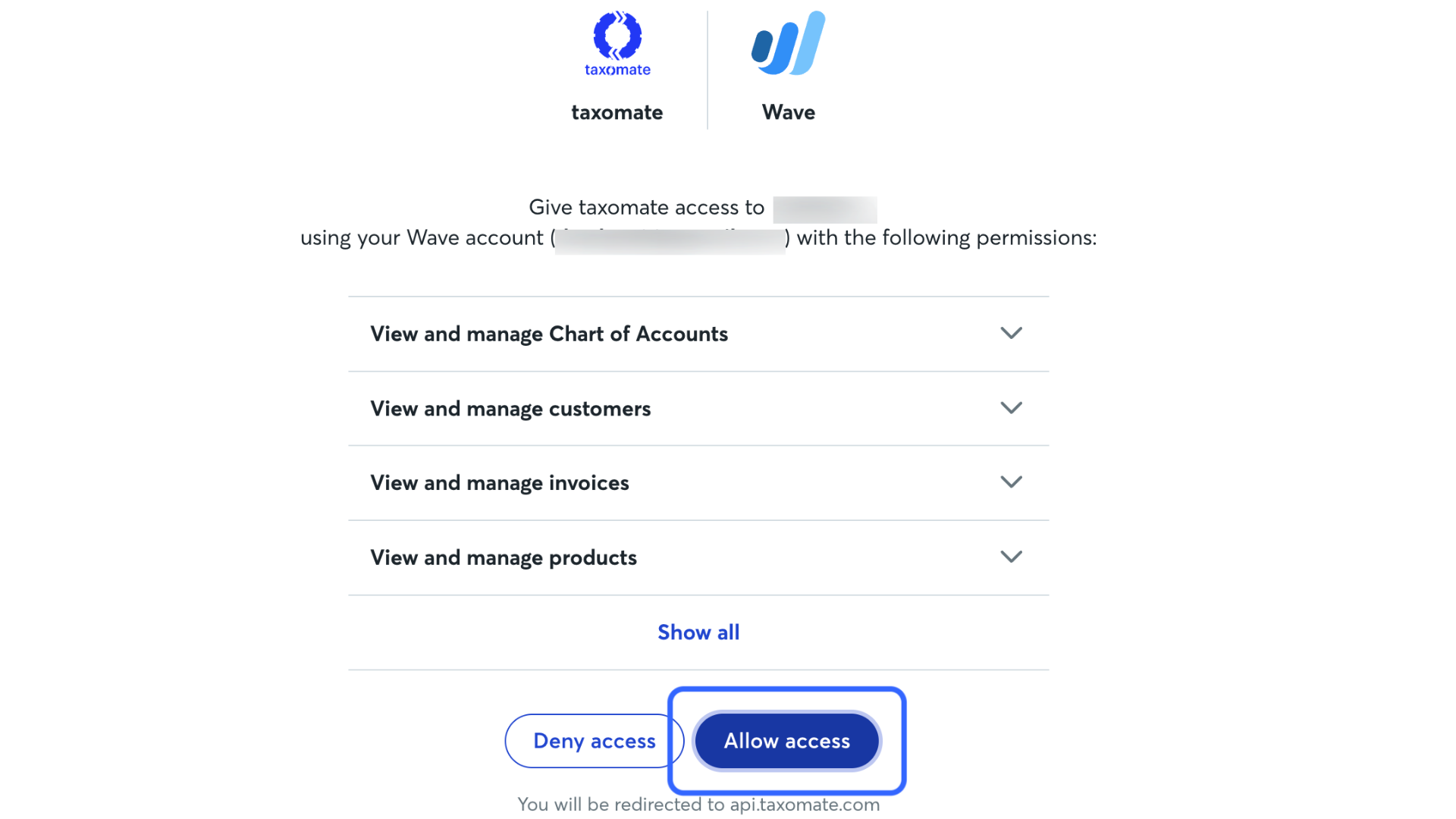
Choose one of QuickBooks Online, Xero, or Wave and select Connect.
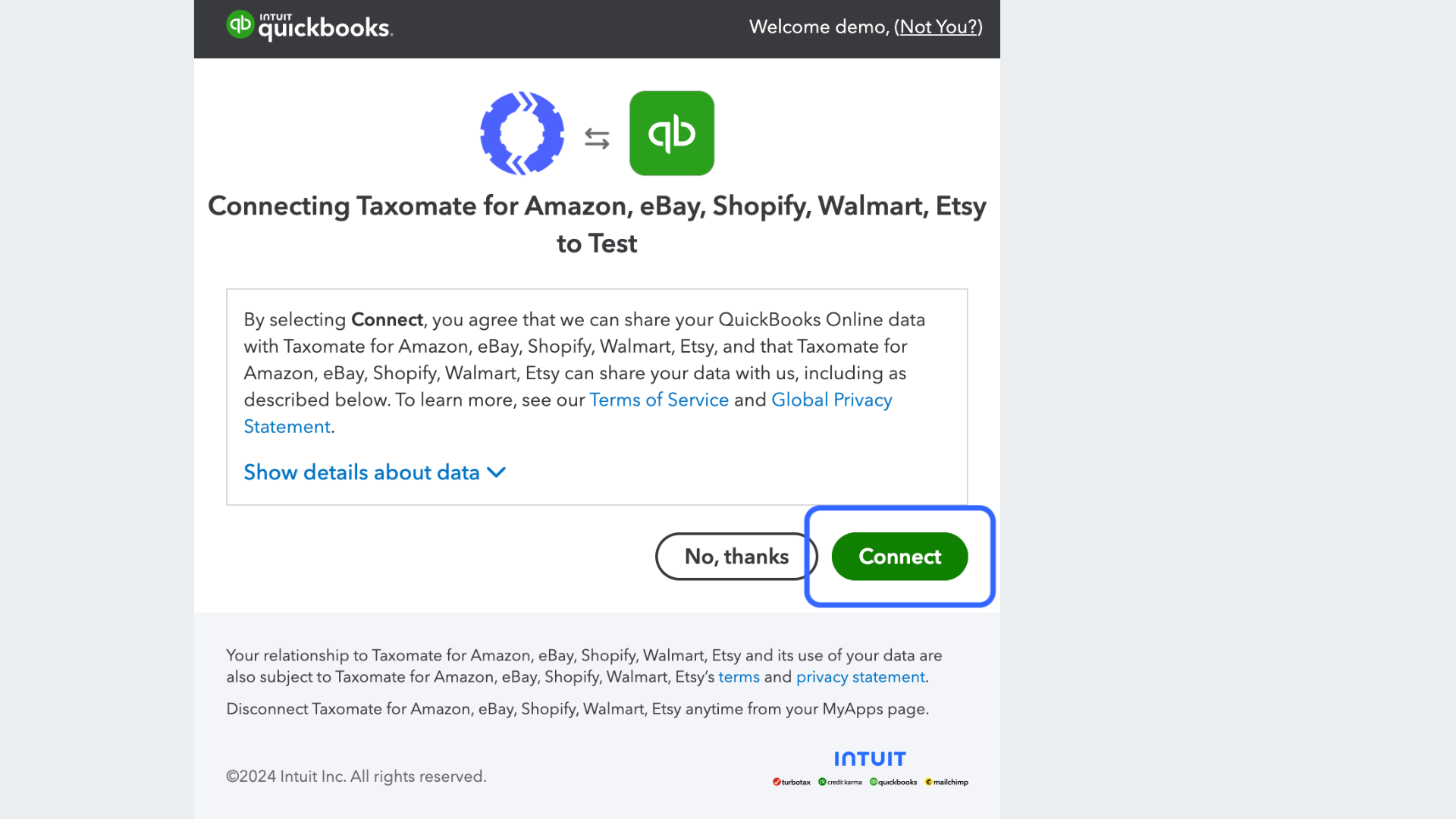
QuickBooks: sign in to QuickBooks if needed, choose your company, and select Connect.
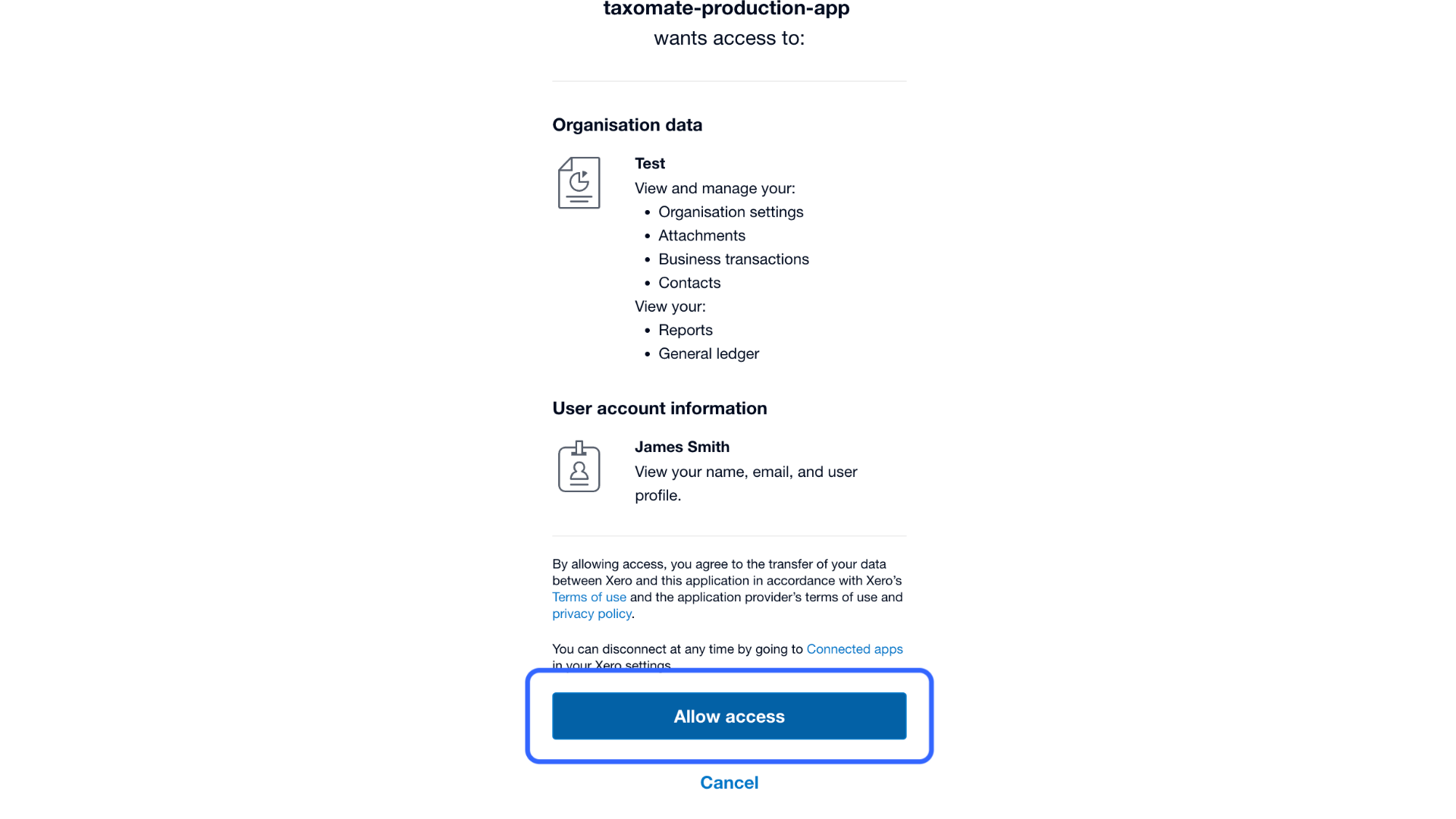
Xero: sign in to Xero if needed, choose your organisation, and select Allow access.
Wave: sign in to Wave and select Allow access.
If you already connected your books under another Taxomate account, select Existing accounting connection, pick the connection, and select Use selected connection.
If you sign in to a different QuickBooks company than the one saved for this account, a red message with the title Wrong account appears. It says: "You signed in to a different QuickBooks company. This account sends to {company name}. Sign in to {company name}, or use Switch company." For Xero it says organisation. Sign in again with the saved company, or select Switch company on the connected row. Taxomate checks the company only for QuickBooks and Xero.
When your store and books both show as connected, select Continue.
