
(Old title: Step 3: Choose Accounts and Payment Settings. This is phase 4 of 5 in the app. The article keeps its old URL.)
Taxomate matches each kind of Amazon money, such as sales, fees and refunds, to one account in QuickBooks, Xero, or Wave. This step sets that up so Taxomate can send your payouts correctly.
The step is Where should Amazon money go? You choose one of two ways.
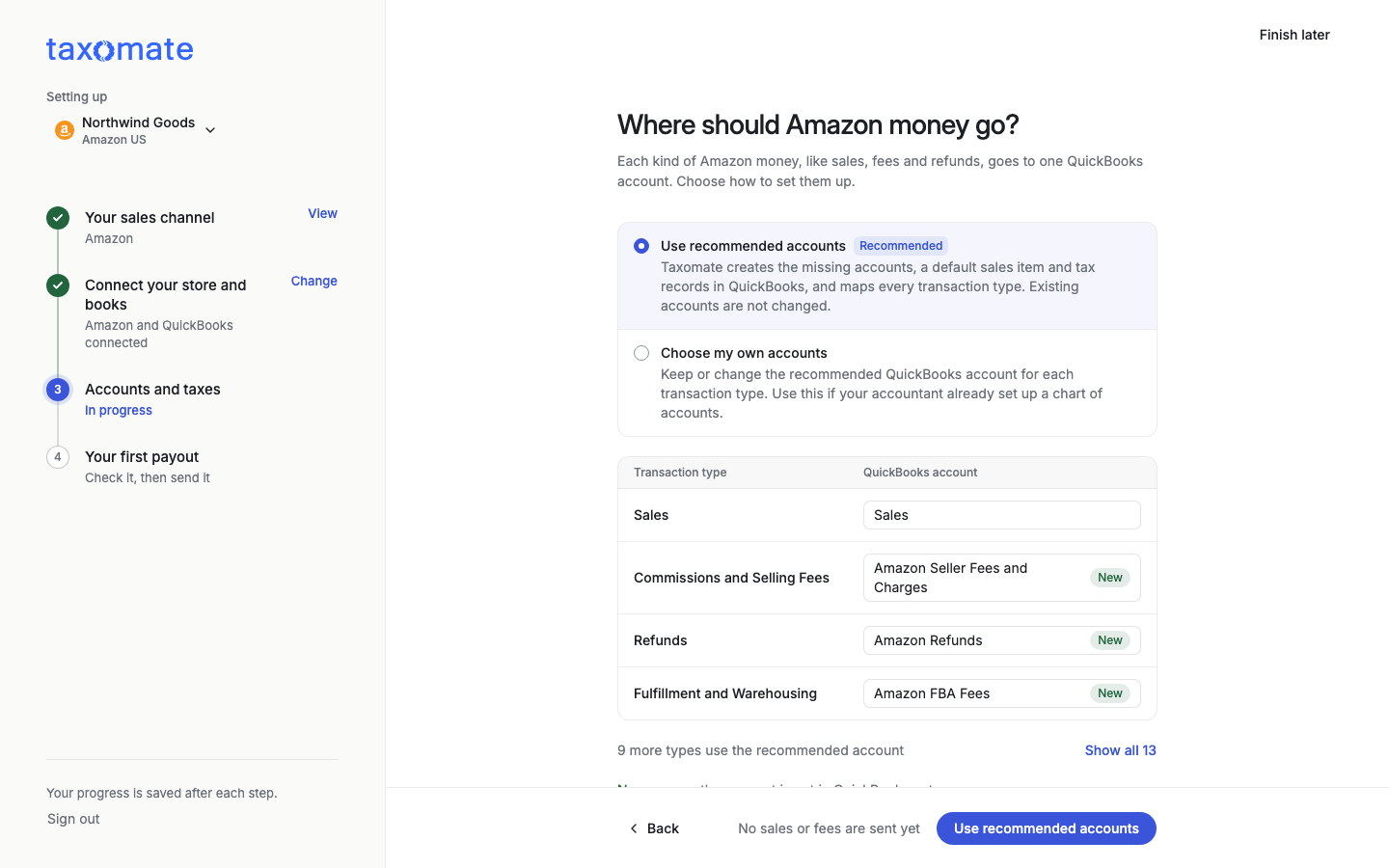
Option A. Use recommended accounts (recommended)
Select Use recommended accounts. Taxomate creates the missing accounts, a default sales item and tax records in QuickBooks, and maps every transaction type. Existing accounts are not changed. The preview table shows each transaction type and its account. New means the account is not in your books yet. Nothing is sent to your books at this step.
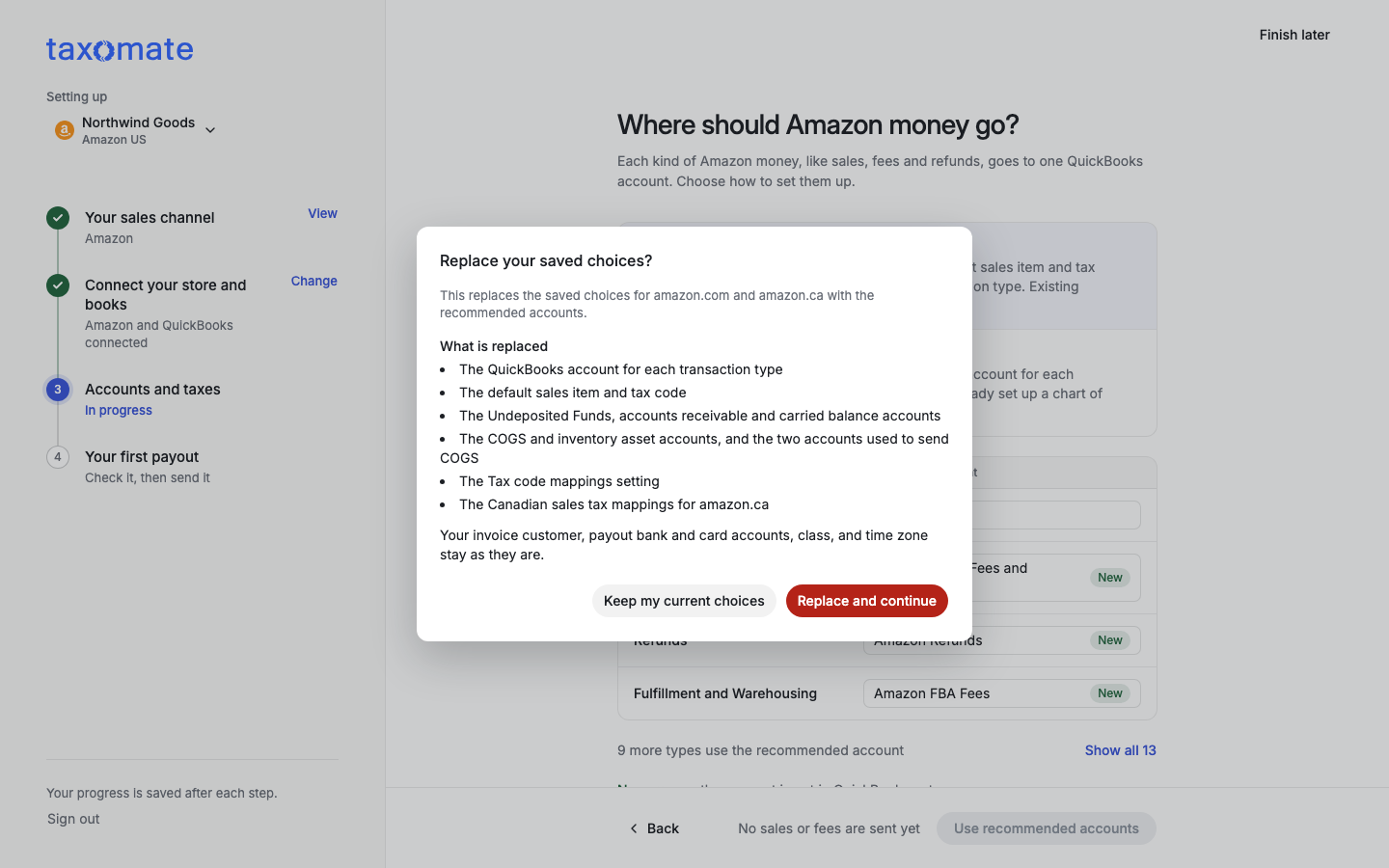
If you already saved choices for a marketplace, Taxomate asks first: Replace your saved choices? The box lists what is replaced (for QuickBooks: the account for each transaction type, the default sales item and tax code, the Undeposited Funds, accounts receivable and carried balance accounts, the COGS and inventory asset accounts, and the Tax code mappings setting). It also says what stays: your invoice customer, payout bank and card accounts, class, and time zone. Select Replace and continue, or Keep my current choices to change nothing.
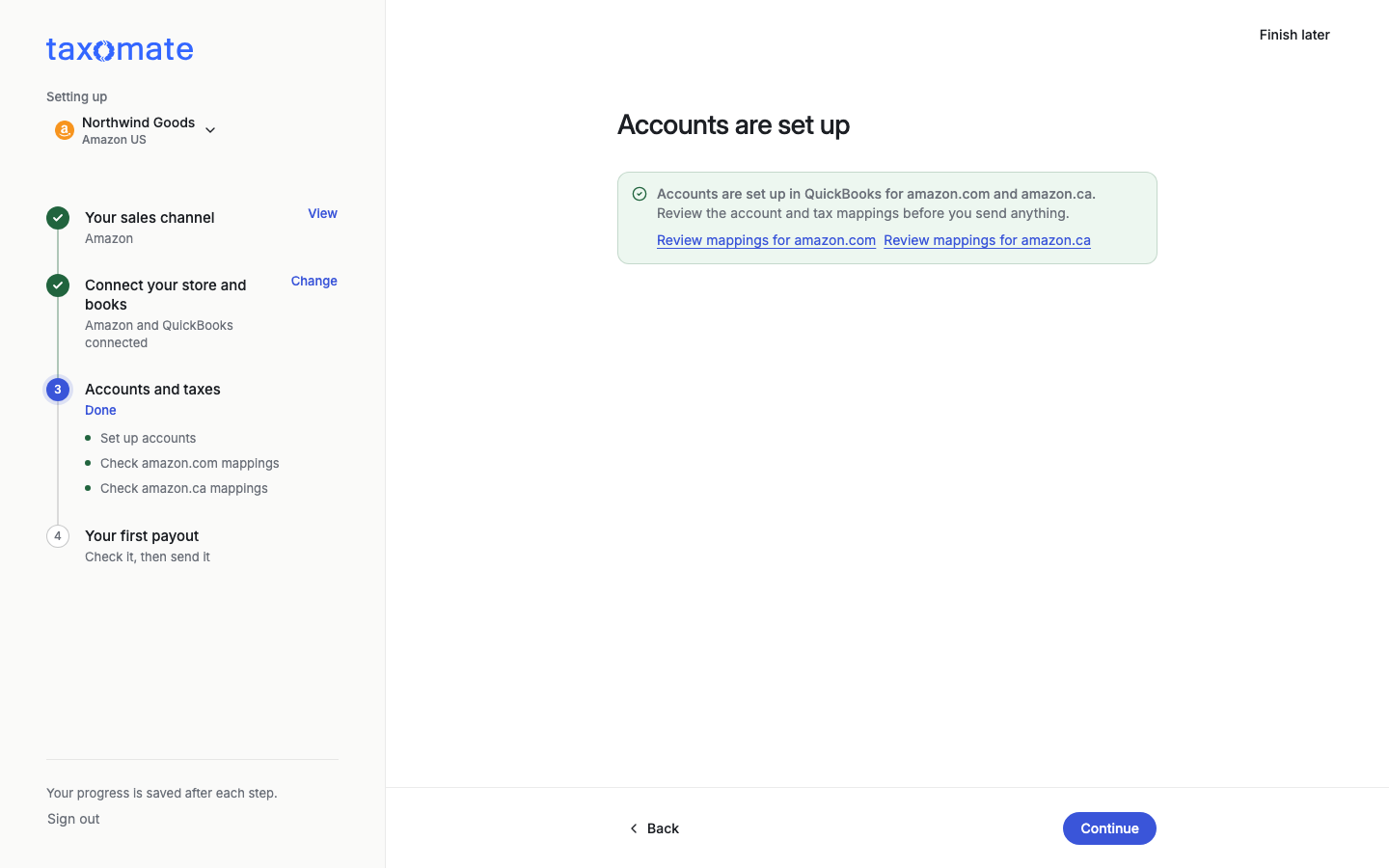
When setup finishes, you see Accounts are set up, with Review mappings for each marketplace. Review them before you send anything, then select Continue. Continue skips any step that is already done, so you may go straight to the next step that needs you.
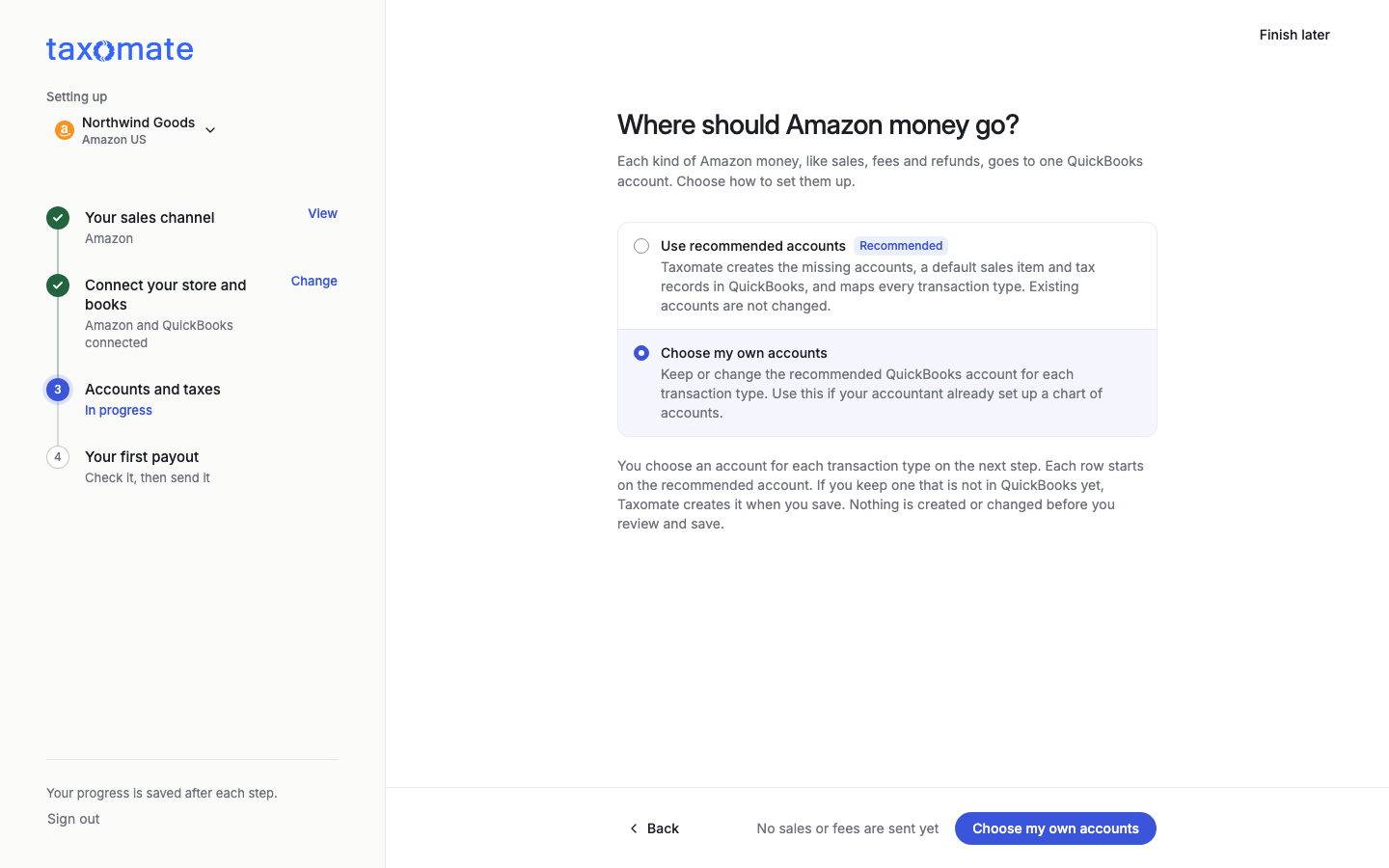
Option B. Choose my own accounts
Select Choose my own accounts if your accountant already set up a chart of accounts. Taxomate saves your choice and creates nothing yet. On the next step, Check {marketplace} mappings, each row starts on the recommended account. Pick the account you want for each transaction type. If you keep a recommended account that is not in your books yet, Taxomate creates it when you save. Select Review and save mappings, read the review, and confirm.
If you connect more than one Amazon marketplace, you can copy mappings from one marketplace to another.
Payment settings
(SOURCE ONLY. Not rendered. Check each name in the live app before you publish.) If you use QuickBooks, the Payment settings step asks for the Payout bank account where Amazon pays you, and the Negative payout bank or credit card account to use when you owe Amazon money. Choose them for each marketplace. A strip shows how many required settings are set. You also see Invoice customer (we recommend leaving it as it is) and QuickBooks class (Optional) to track each marketplace in QuickBooks reports. Xero uses tracking categories instead of classes. Wave needs the invoice customer.
You do not see the bank account settings if you use Xero or Wave.
Change these later
Use Accounts and taxes (sidebar) for account and tax mappings: change a row, then select Review and save. Use Settings > Connections > Manage marketplace mappings for the bank accounts, invoice customer and class.